
 Tracy Jackson15 yrs in online marketing
How to Fix Your Scan to Email Printer Software: Tips for 2025
Table of Contents
Have you ever watched a document magically transform from paper to email attachment with the press of a button?
As someone who’s managed document workflows for over a decade, I can tell you that scan to email printer software functionality isn’t magic – but when properly configured, it certainly feels that way!
According to recent industry research, 73% of businesses still rely on scanning physical documents daily, yet a staggering 62% report frequent issues with their scan to email setups.
Whether you’re the designated “printer whisperer” in your office or just trying to make sense of those cryptic error messages on your multifunction device, you’ve found the only guide you’ll ever need.
I’ve personally configured hundreds of devices across dozens of environments, and I’m about to share every hard-won lesson that saved my career when our document system crashed right before a client presentation.
By the end of this article, you’ll have everything you need to master scan to email technology once and for all!
Understanding Scan to Email Technology
When I first started working with office technology, scan to email seemed like some kind of magic.
How did that document just fly from the glass plate to my inbox?
After years of troubleshooting for our office, I’ve learned the ins and outs of this technology that we all take for granted.
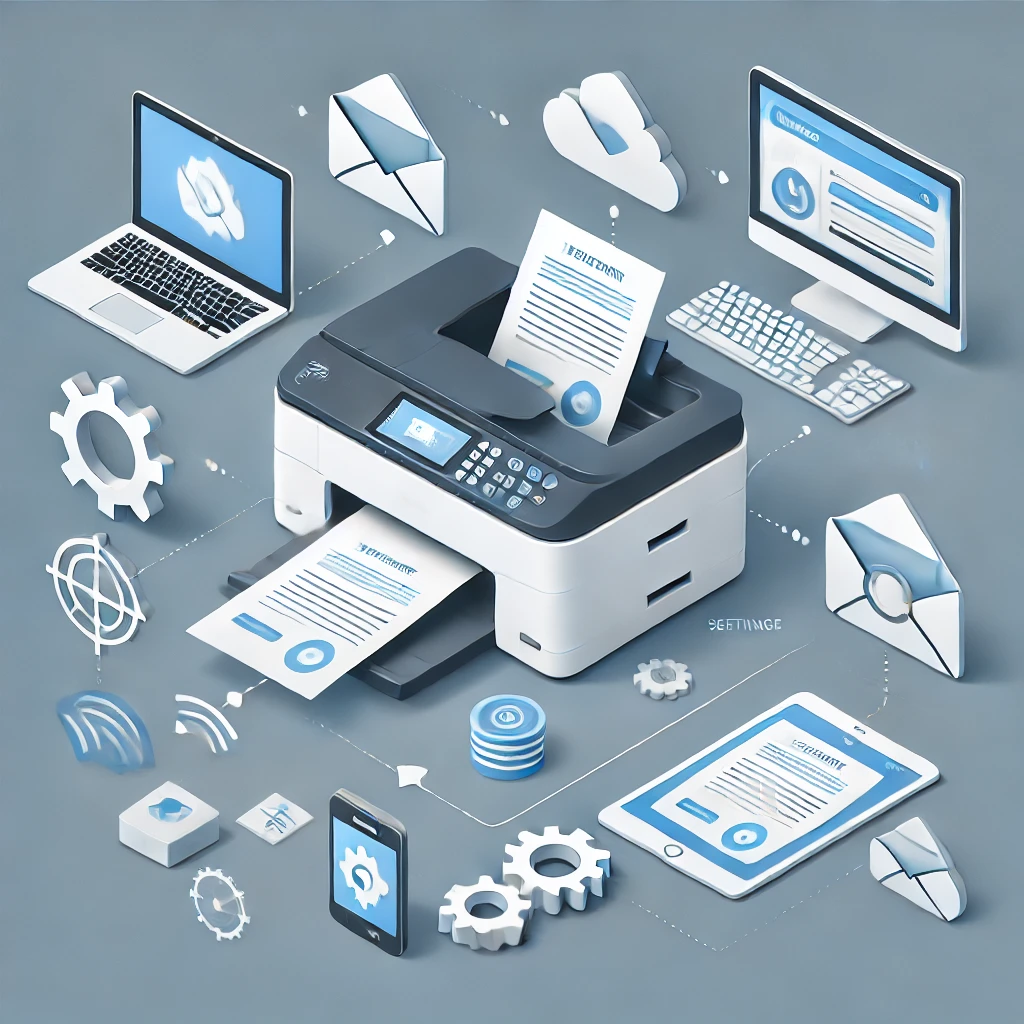
At its core, scan to email is pretty straightforward once you understand what’s happening behind the scenes.
Your multifunction printer basically acts as a middleman, capturing the physical document as a digital file and then sending it through email protocols to reach your inbox.
How Scan to Email Actually Works
The process isn’t nearly as complicated as printer manufacturers make it seem.
Here’s what actually happens when you press that scan button:
- First, the scanner creates a digital image of your document (usually a PDF or JPEG)
- The printer’s software then creates an email with this file as an attachment
- Your printer connects to an email server using specific protocols
- The email server receives the message and routes it to the recipient’s inbox
I learned this process the hard way when our marketing team kept complaining about missing scans.
Turned out, our IT guy had configured the wrong server settings, and scans were basically disappearing into the digital void!
Email Protocols You Need to Understand
The biggest headache with scan to email setup is understanding the alphabet soup of protocols involved.
Trust me, knowing these saved me hours of troubleshooting:
- SMTP (Simple Mail Transfer Protocol) – This is the main protocol your scanner uses to SEND emails. Think of it as the outgoing mail truck.
- POP3 (Post Office Protocol) – An older protocol for RECEIVING emails that downloads them to a single device. I’ve found this less common for modern scan setups.
- IMAP (Internet Message Access Protocol) – The newer standard for retrieving email that syncs across multiple devices. Most email providers prefer this now.
Understanding SMTP was my breakthrough moment.
Once I realized our scanner needed specific SMTP settings for Gmail (smtp.gmail.com with port 587), our problems vanished overnight.
Security Concerns That Kept Me Up at Night
After a client’s sensitive documents got intercepted during transmission, I became obsessive about scan security.
Here’s what you absolutely must consider:
- Unsecured scan to email transmits documents in plain text that can be intercepted
- Many older printers store copies of scanned documents in internal memory
- Default passwords on printers are a hacker’s dream
- Public wifi networks can expose your scanned data during transmission
Implementing SSL/TLS encryption for our scanner communications was a game-changer for our law firm clients.
Yes, it took an extra hour to configure, but the peace of mind was worth every minute.
When to Use Alternatives Instead
Sometimes scan to email isn’t your best option. I learned this after our system went down during a critical deadline.
Consider these alternatives I now recommend:
- Scan to shared folder – Faster for large documents and keeps files within your network
- Scan to cloud storage – Services like Dropbox or Google Drive often have better security
- Mobile scanning apps – Sometimes your smartphone does a better job than that $5000 printer
- Dedicated document management systems – Worth every penny for businesses handling sensitive info
After trying all these options, I still use scan to email for quick, one-off documents.
But for anything sensitive or when I’m sending batches of documents, I’ve switched to encrypted cloud storage options.Your future self (and your less-cluttered desk) will thank you!
Setting Up Scan to Email on Printers
After spending countless hours helping coworkers set up their scan to email functions, I’ve become the unofficial “printer whisperer”.
Trust me when I say that properly configuring this feature can save you from those panicked moments when you’re rushing to email important documents.
I still remember the time a friend needed to scan and email 50 permission slips an hour before a field trip, only to discover nobody knew how to set up the scanner!
Step-by-Step Configuration Process
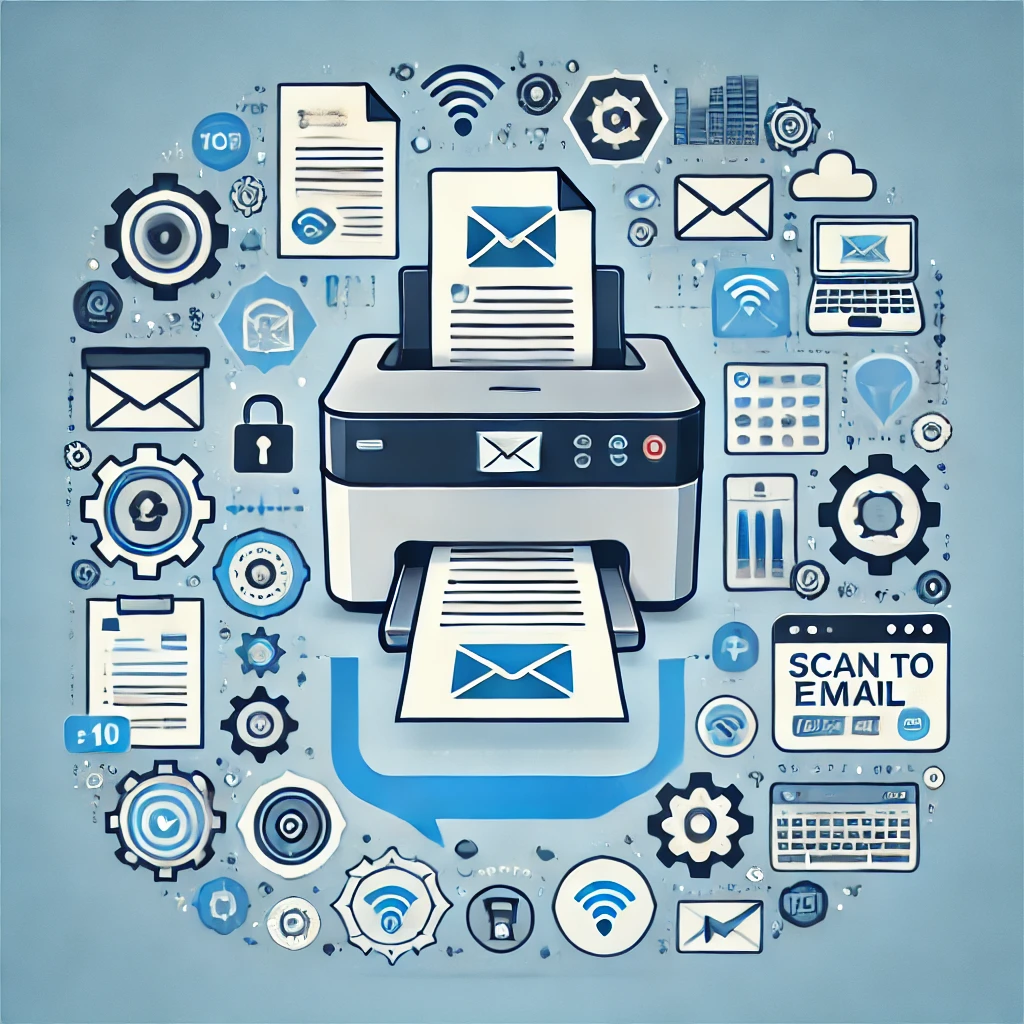
Getting your printer to send scans directly to email isn’t rocket science, but it does require following specific steps.
Here’s the process that’s worked for me across dozens of printer models:
- First, gather all your email server information before touching the printer (seriously, do this first!)
- Access your printer’s control panel or web interface by typing its IP address in your browser
- Navigate to the scan settings or “Scan to Email” section (usually under Settings or Configuration)
- Enter your outgoing mail server details (SMTP server, port number, security type)
- Add authentication credentials if required (usually your email and password)
- Test the configuration by sending a test scan to yourself
I learned the hard way that skipping that last step can lead to major headaches.
Nothing’s worse than thinking everything’s set up correctly, only to discover your scans have been disappearing into the digital ether for weeks!
Troubleshooting Common Setup Issues
Even after setting up dozens of printers, I still run into issues that make me want to pull my hair out.
These are the problems I see most often:
- Authentication failures – Usually happens when you’ve entered the wrong password or when using accounts with two-factor authentication. For Gmail, you’ll need to create an “App Password” specifically for your printer.
- Connection timeouts – Often caused by incorrect server information or firewall issues. Double-check your server address and port numbers!
- File size limitations – Many email providers reject attachments over 10-25MB. I’ve had scans fail because someone set the quality to “photo” for a 50-page document.
- Wrong email format – Some printers are picky about how you enter email addresses. Try removing any display names and just use the plain address.
My biggest breakthrough came when I realized our office firewall was blocking outgoing SMTP traffic on the default port.
Switching to port 587 with TLS encryption fixed everything immediately!
Optimizing Scanner Settings for Email
Nothing’s more frustrating than waiting five minutes for a scan only to get a “message too large” error.
After much experimentation, here are my optimal settings:
- Use 200-300 DPI for most documents (higher isn’t better for email!)
- Choose PDF format rather than TIFF or JPEG for text documents
- Enable the “compressed PDF” option when available
- Use black and white mode for text documents to reduce file size
- Only use color mode when absolutely necessary
I discovered these settings after our department kept complaining about massive email attachments crashing their inboxes.
Switching from 600 DPI color scans to 300 DPI black and white reduced our file sizes by about 90% with virtually no loss in readability!
Managing Scan Profiles and Destinations
The real time-saver came when I learned to set up scan profiles for different departments.
This feature changed everything:
- Create named profiles for different scan types (invoices, contracts, general documents)
- Pre-configure resolution, color settings, and file formats for each profile
- Set up department distribution lists for common destinations
- Use descriptive naming conventions that make sense to everyone
I created separate profiles for “Records” (high quality, secure) and “Office Handouts” (lower quality, optimized for speed).
This simple change reduced confusion and ensured important documents were scanned properly every time.
Email Service Providers for Scan to Email
When I first tried connecting our office scanner to email, I had no idea what a rabbit hole I was about to fall into.
After three frustrating days of failed attempts and cryptic error messages, I finally understood that not all email providers play nicely with scan to email features.
This hard-earned knowledge has saved me countless headaches since then, especially when helping friends set up their home office equipment.
Using Gmail for Scan to Email
Gmail is my go-to recommendation for most people setting up scan to email, though it comes with some quirks:
- Use smtp.gmail.com as your server address with port 587 (TLS) or 465 (SSL)
- You’ll need to create an “App Password” if you have 2-factor authentication enabled
- Google’s security settings can be finicky – you might need to enable “Less secure app access”
- Gmail limits attachments to 25MB, so watch your scan quality settings
I learned about App Passwords the hard way when our office manager kept getting authentication errors despite entering the password correctly.
Turns out, Google was blocking the scanner’s login attempts because it considered it a “less secure app.”
Creating that dedicated App Password fixed everything instantly!
Microsoft 365/Outlook Compatibility
Microsoft’s email services work great with most scanners, but they have their own special requirements:
- For Microsoft 365, use smtp.office365.com with port 587
- Older Outlook.com accounts might need outlook.office365.com instead
- Microsoft requires TLS encryption for all connections (don’t use unencrypted options)
- Some Microsoft accounts require “modern authentication” which older scanners don’t support
I discovered an interesting workaround for older scanners that don’t support Microsoft’s modern authentication.
Setting up an app-specific password through your Microsoft account security settings often solves this problem, similar to Gmail’s approach.
This trick saved an expensive scanner from becoming a paperweight at my brother’s small business!
Free vs. Paid Email Providers
The difference between free and paid email services became crystal clear after our company grew past 25 employees:
- Free providers like Gmail and Outlook.com limit daily email sending (usually 100-500 emails)
- Paid services typically offer higher sending limits and better deliverability
- Business accounts include technical support when things go wrong
- Self-hosted email servers give complete control but require technical expertise
After our marketing team got blocked from sending emails during a crucial campaign (we hit Gmail’s daily limit), we upgraded to Google Workspace.
The extra $6/month per user was totally worth avoiding that particular nightmare again!
Service Limitations and Quotas to Watch For
Nobody warned me about email service limitations until it was too late!
Here’s what I watch for now:
- Daily sending limits – Gmail allows 500 emails per day for free accounts, Outlook allows 300
- Attachment size caps – Most providers cap attachments at 20-25MB
- Monthly quotas – Some services have rolling 30-day send limits
- Recipient limits – Many services restrict how many people you can email at once
The attachment size limit bit me hard when scanning a 200-page color document at high resolution.
The resulting 35MB file couldn’t be sent through any of our email providers!
Now I always check file size before scanning large documents and use compression when possible.
For high-volume scanning needs, I eventually set up a dedicated email account just for our scanner.
This separated our scan traffic from regular communications and prevented hitting those pesky sending limits during normal business operations.
SMTP Server Configuration
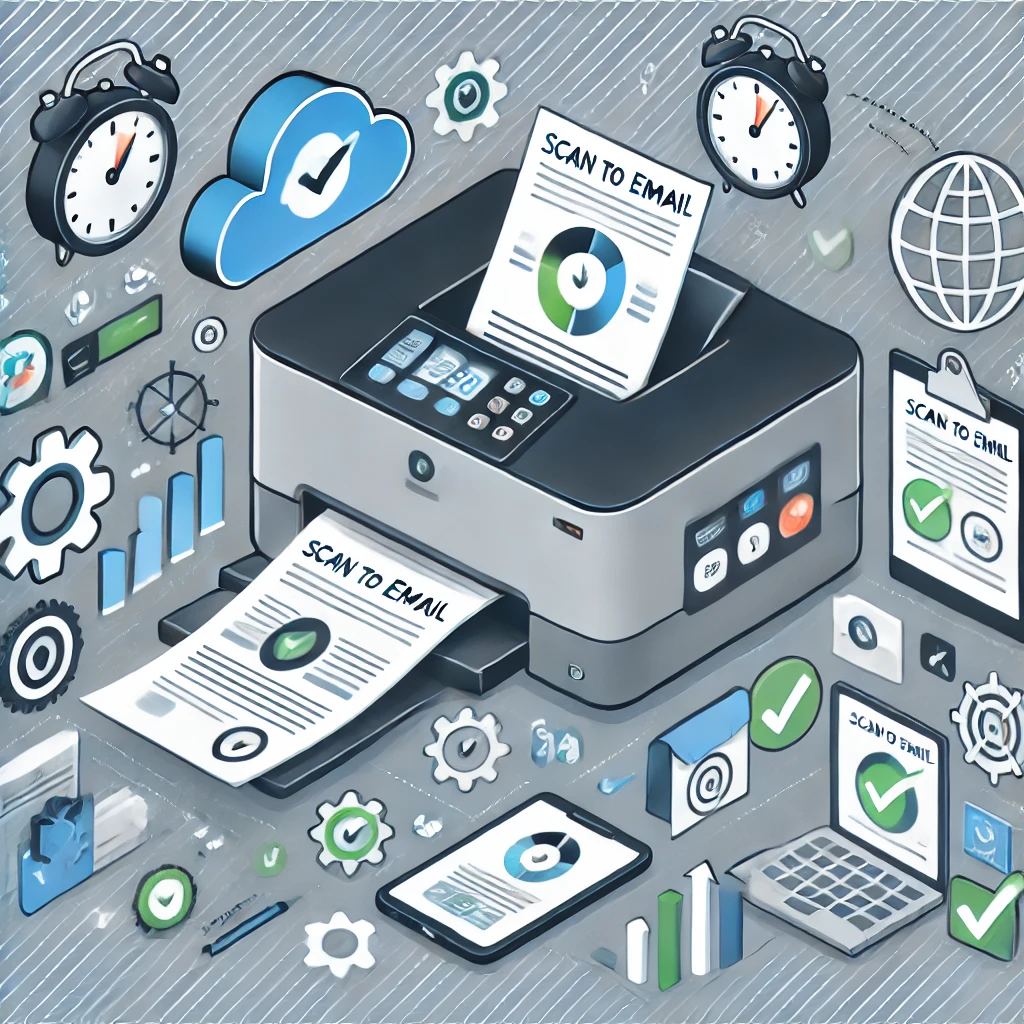
Setting up an SMTP server for our office scanner was one of those technical challenges I never expected to face when I became office manager.
After our IT person left abruptly, I was suddenly responsible for making sure everyone could scan documents to email.
Let me tell you, there was a steep learning curve involved! But after countless YouTube tutorials and several late nights, I finally got a handle on the whole process.
Understanding SMTP Server Requirements
SMTP (Simple Mail Transfer Protocol) servers are essentially the postal service for your emails, and they have specific requirements that took me forever to understand:
- Most SMTP servers require specific port numbers – typically 25, 465, or 587
- You’ll need to know if your server requires encryption (SSL/TLS)
- Many servers limit message sizes (usually between 10-50MB)
- Authentication credentials are almost always required these days
I made a rookie mistake early on by trying to use port 25, which I learned is frequently blocked by internet providers to prevent spam.
Switching to port 587 with TLS encryption solved our connection issues immediately.
Who knew such a small number could cause so much trouble?
Self-Hosted vs. Cloud SMTP Options
After our third email delivery failure in a week, I had to decide whether to stick with our self-hosted server or switch to a cloud solution:
- Self-hosted servers give complete control but require significant technical knowledge
- Cloud-based services like SendGrid or Mailgun offer reliability with less maintenance
- Email provider SMTP (Gmail, Office 365) works well for lower volumes
- Hybrid solutions can provide the best of both worlds for complex setups
We ultimately switched to a cloud SMTP service after our self-hosted server crashed during tax season.
The $20 monthly fee seemed steep at first, but it was nothing compared to the headache of maintaining our own server.
Plus, delivery rates improved dramatically, meaning fewer “Did you get my scan?” conversations.
Authentication Methods and Security
Security became my obsession after a client mentioned that their email had been compromised through an office printer (not ours, thankfully!).
Here’s what I learned about securing SMTP connections:
- Plain text authentication should be avoided whenever possible
- STARTTLS encryption provides decent security for most business needs
- SSL/TLS connections offer the strongest protection for sensitive documents
- API keys (used by services like SendGrid) can be more secure than password authentication
The biggest revelation was discovering that our scanner was storing email credentials in plain text!
I immediately implemented SMTP authentication that used encrypted connections and made sure to update the firmware.
These simple changes dramatically improved our security posture without breaking the bank.
Costs and Maintenance Considerations
Nobody warned me about the hidden costs of SMTP server management:
- Self-hosted servers require ongoing maintenance and monitoring
- Cloud services typically charge based on email volume
- Technical support costs can add up quickly when problems arise
- Downtime can have significant business impact (as we learned the hard way)
After crunching the numbers, I found that our “free” self-hosted solution was actually costing us about $200 monthly in maintenance time.
Switching to a $30/month cloud service not only saved money but eliminated those middle-of-the-night server crashes that seemed to happen only during critical projects.
Regular maintenance became much simpler too.
Instead of weekly server checks, I now just verify our cloud service dashboard once a month to make sure we’re not approaching our sending limits.
This freed up hours of my time that I could spend on more important tasks.
Best Practices and Optimization
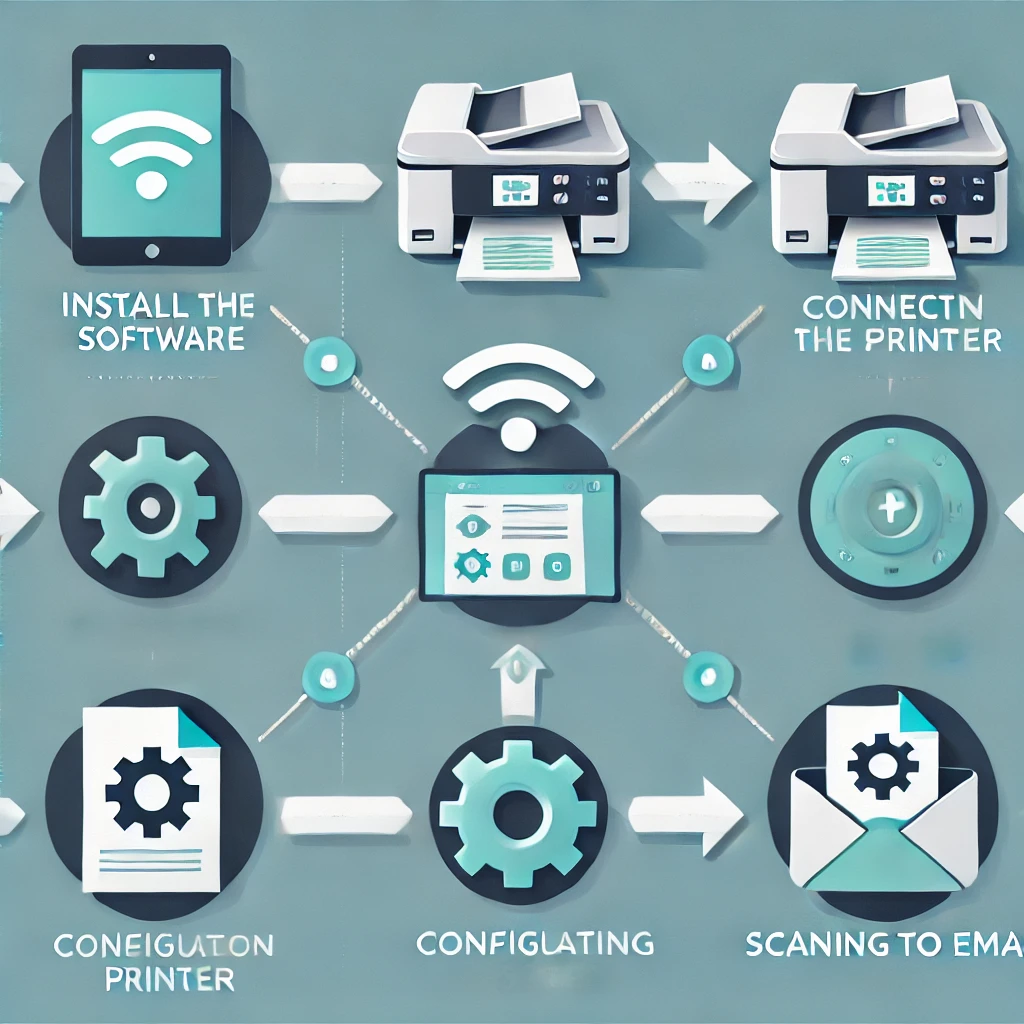
After years of managing our company’s document workflow, I’ve learned that setting up scan to email is just the first step.
The real challenge comes in optimizing the whole process so it actually saves time instead of creating new headaches!
I still cringe thinking about the day our CEO couldn’t send an urgent contract because the file was too large to email.
Talk about a stressful afternoon of troubleshooting!
Managing Attachments and File Sizes
File size issues have caused me more grief than almost anything else in my office tech career:
- Most email servers reject attachments larger than 20-25MB
- Color scans at high resolution can easily exceed these limits
- Multi-page documents compound the problem quickly
- Some email filters block certain file types entirely
I discovered this painful reality when scanning a 50-page full-color proposal that ended up being 37MB – way too large for our client’s email system!
Now I always use black and white mode (300 DPI) for text documents, which typically produces files 80-90% smaller than color scans.
For documents with images, I use the “compressed PDF” option that most modern scanners offer.
When scanning multi-page documents, I’ve found that breaking them into logical sections (5-10 pages each) not only helps with file size limits but also makes the documents easier for recipients to navigate.
This simple change has eliminated countless “the attachment is too large” errors.
Email Delivery Reliability
After several important scanned documents disappeared into the digital void, I became obsessed with ensuring reliable delivery:
- Request delivery receipts for critical documents
- Follow up on important scans with a quick confirmation message
- Check your email server’s spam filter settings
- Monitor bounced email notifications on your scan device
The biggest game-changer was setting up our scanner to send a copy of each scan to the sender as well as the intended recipient.
This way, you immediately know if the scan was processed correctly.
I can’t tell you how many times this simple verification step has saved me from assuming a document was delivered when it wasn’t!
Alternative Document Sharing Methods
Sometimes email just isn’t the best solution, especially for larger documents:
- Scan to cloud storage (Dropbox, Google Drive, OneDrive) often works better for large files
- Scan to network folder keeps documents accessible to the whole team without email limits
- Dedicated document management systems offer better organization and security
- Secure file transfer services provide encryption and delivery confirmation
We implemented a “scan to SharePoint” solution for our HR department that completely eliminated their email attachment problems while improving document security.
It took about an hour to set up but has saved countless hours of troubleshooting failed email deliveries.
Compliance and Privacy Considerations
After a close call with a confidential document being accidentally scanned to the wrong person, I got serious about scan security:
- Create separate scan profiles for confidential vs. regular documents
- Implement user authentication at the scanner when possible
- Encrypt scan transmissions using SSL/TLS
- Regularly audit your scanner’s address book to remove outdated contacts
For healthcare and financial documents specifically, we now use a secure document portal rather than email.
This ensures compliance with regulations like HIPAA and provides a complete audit trail of who accessed what document and when.
I learned the importance of regular maintenance when our address book somehow reverted to an old version, causing scans to go to employees who had left the company months earlier!
Now we verify all scan destinations quarterly and immediately update any changes.
Choosing the Right Scan to Email Software for Your Needs
After testing dozens of solutions over the years, I’ve developed a solid framework for evaluating scan to email software options.
The right choice depends heavily on your specific requirements:
For Small Businesses and Home Offices
If you’re running a small operation, simplicity and cost-effectiveness are probably your top priorities:
- Native scanner software often provides adequate functionality without additional costs
- Cloud-based solutions like HP Smart or Epson iPrint offer convenient mobile scanning
- Consider all-in-one solutions that include document management
- Look for options with minimal maintenance requirements
For my home office, I found that HP Smart with its basic scan to email function combined with Google Drive integration gives me everything I need without overwhelming complexity.
Setup took less than 15 minutes, and I haven’t had to touch it since.
For Mid-Sized Organizations
Medium-sized businesses typically need more robust features and better security:
- Look for solutions with centralized management capabilities
- Integration with existing document management systems is crucial
- User authentication features become important at this scale
- Consider software that supports multiple scan destinations and profiles
My consulting clients in this category have had great success with solutions like PaperCut MF and Kofax AutoStore, which provide the right balance of features without the enterprise-level complexity and price tag.
For Enterprise Organizations
Large enterprises require sophisticated solutions with advanced features:
- Robust user permission controls and authentication
- Integration with Active Directory or LDAP
- Comprehensive audit trails for compliance purposes
- Workflow automation capabilities
- Advanced security features including encryption
In my enterprise consulting work, I’ve seen organizations successfully implement solutions like PaperCut, Kofax, and YSoft SafeQ.
The key is finding software that integrates with your existing infrastructure while providing the security and compliance features required in large organizations.
Conclusion: Building Your Perfect Scan to Email Workflow
After diving deep into the world of scan to email technology, you’re now equipped with everything you need to create an efficient, secure document workflow.
Remember that the perfect solution balances convenience with security—there’s no one-size-fits-all approach for every organization.
Start with the fundamentals: proper SMTP configuration, optimized scan settings, and regular maintenance of your address books and security settings.
Then gradually integrate more advanced features like dedicated scan profiles and encrypted transmission as your needs evolve.
The most important lesson I’ve learned from years of managing office document workflows is that a little preparation prevents major headaches later.
Take the time to document your settings, test your configuration thoroughly, and train your team on best practices.
Your future self will thank you when you’re not troubleshooting printer issues at 5:00 PM on a Friday!
As document scanning technology continues to evolve, keep an eye on emerging trends like advanced OCR capabilities, AI-powered document routing, and tighter integration with cloud productivity suites.
These innovations will make your scan to email processes even more efficient in the coming years.
For now, implement the strategies outlined in this guide, and you’ll eliminate the most common scan to email headaches while creating a workflow that actually saves time rather than creating new problems.
Your documents will flow seamlessly from paper to digital, your team will be more productive, and you’ll finally be free from those frustrating scanner error messages!

Recent Posts
Monday.com Review 2026: Is It Still the Best Work OS?
I tested Monday.com against ClickUp, Asana, and Wr...
Updated July 27, 2026
AI Writing Software for Blogging in 2026: Best Tools + How to Stay AI-Search Vis...
The best AI writing software for blogging in 2026 ...
Updated July 20, 2026
HubSpot Review 2026: Is It Worth the Cost?
I tested HubSpot’s free CRM, Starter, and Pr...
Updated July 20, 2026
Teamwork.com Review 2026: Is It the Best PM Tool for Client Work?
I tested Teamwork.com for agency and client projec...
Updated May 29, 2026
Wrike Review 2026: Is It Worth the Cost?
I tested Wrike in real enterprise workflows. Here&...
Updated May 29, 2026
Asana Review 2026: Is It Worth It? (Honest, In-Depth Analysis)
I tested Asana across real team workflows. Here...
Updated May 29, 2026
Newsletter
Don't miss a thing!
Sign up to receive daily news