

Updated May 13, 2026
Scan to Email Integration with Cloud Services: 2025 Guide
Table of Contents
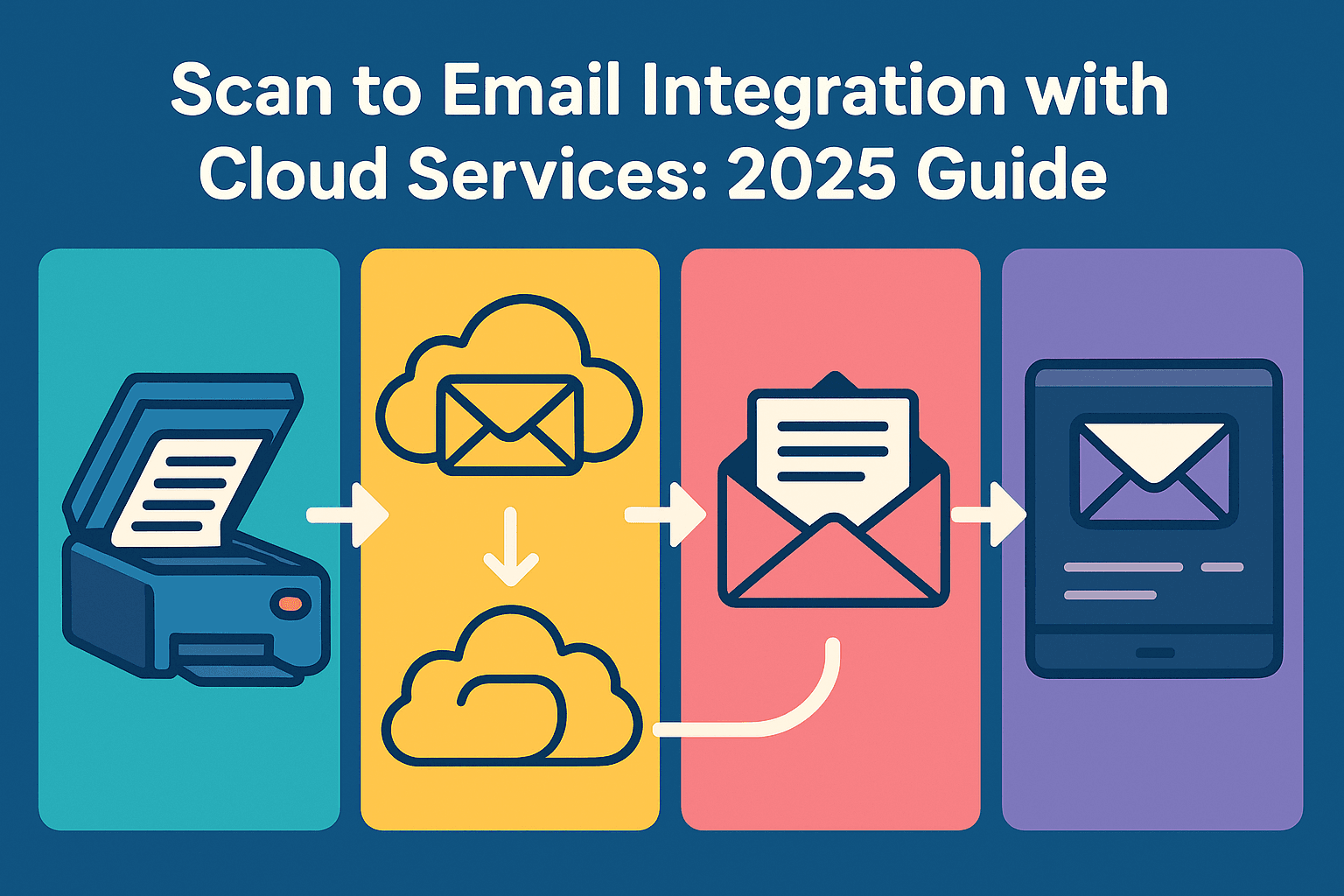
Remember the days of scanning a document, saving it to your desktop, attaching it to an email, and then finally hitting send?
What a productivity killer! According to recent research by McKinsey, businesses waste an average of 4.3 hours per week on manual document handling—that’s over 220 hours annually!
The good news?
Scan to email integration with cloud services has completely revolutionized how we handle physical documents in our increasingly digital world.
Whether you’re running a small accounting firm, managing a classroom, or just trying to organize your personal paperwork, the ability to scan directly to cloud email services can transform your document workflow.
As someone who survived the painful transition from filing cabinets to fully digital systems, I’m excited to share everything I’ve learned about making this technology work seamlessly in your life.
In this comprehensive guide, we’ll cover everything from basic concepts to advanced implementation techniques, security considerations, and troubleshooting tips.
By the time you finish reading, you’ll have all the knowledge needed to implement an efficient, secure scan-to-cloud system that meets your specific needs.
Get ready to say goodbye to those clunky old processes and hello to effortless document management!
Understanding Scan to Cloud Technology
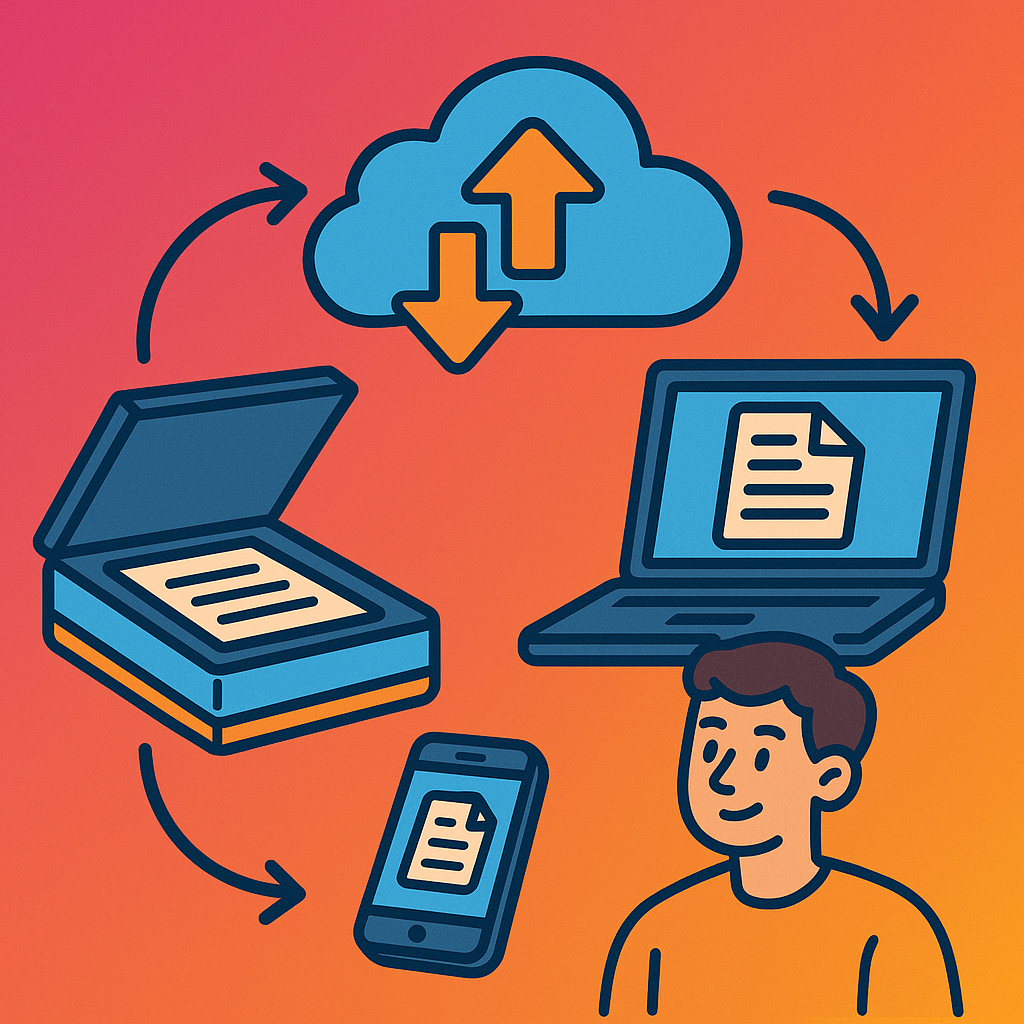
Cloud scanning might sound technical, but it’s actually quite simple. It’s the process of scanning physical documents directly to online storage instead of your computer’s hard drive.
This eliminates several steps in the traditional scanning workflow—no more scanning to desktop, renaming files, and manually uploading to shared drives!
What is Cloud Scanning?
At its core, cloud scanning creates a direct pipeline between your physical scanner or smartphone and your online storage.
When I first implemented this in our office, it immediately eliminated three manual steps from our invoice processing workflow.
Instead of scanning to a local folder, then renaming the file, then uploading it to our shared drive, we could scan once and have the document instantly available in our cloud storage.
The beauty of cloud scanning is its simplicity from the user perspective.
The complex technology operates behind the scenes, while you simply place a document in the scanner, press a button, and watch it appear in your designated cloud location.
What is the Scan to Cloud Email App?
A scan to cloud email app is software that connects your scanner directly to your email service.
These applications serve as the bridge between your physical documents and your digital communication channels.
Popular options include Adobe Scan, which transforms your smartphone into a powerful scanning device, Microsoft Office Lens, which integrates seamlessly with Microsoft 365, and Genius Scan, which offers advanced features like OCR and PDF optimization.
These apps have become increasingly sophisticated, with features like automatic edge detection, perspective correction, and text recognition that can transform even poorly lit smartphone captures into professional-quality scanned documents.
What is Cloud Sync and How Does It Differ from Other Syncing Methods?
Cloud sync actively keeps files identical across multiple devices automatically.
Unlike traditional syncing methods that required manual intervention—like plugging in a USB drive or connecting to a specific network—cloud sync works silently in the background, ensuring all your devices have the latest version of every document.
Traditional syncing methods include:
- Manual file transfers: Copying files between devices using external storage
- Local network syncing: Sharing files across devices connected to the same network
- FTP/SFTP: Transferring files to remote servers using file transfer protocols
Cloud sync improves upon these methods by:
- Operating continuously without user intervention
- Working across any internet-connected device regardless of location
- Providing version history and conflict resolution
- Offering enhanced security features like encryption
- Enabling real-time collaboration
Popular cloud sync services include Dropbox, Google Drive, and OneDrive, each offering different storage limits and features to suit various needs.
The Evolution of Document Digitization to Cloud Integration
The journey from paper to cloud has evolved through several distinct phases:
- Paper-based systems (pre-2000s): Physical documents stored in filing cabinets, with limited accessibility and high vulnerability to damage
- Basic digitization (early 2000s): Scanning documents to create digital copies stored locally, improving searchability but still limited to single devices
- Network storage (mid-2000s): Storing scanned documents on local networks, enabling limited sharing but restricted to on-premises access
- Cloud storage (2010s): Moving scanned documents to cloud platforms, providing access from any location but still requiring multiple steps
- Integrated cloud scanning (present): Direct scanning to cloud services with automated workflows, maximum accessibility, and enhanced security
This evolution has transformed document management from a labor-intensive, location-dependent process to an efficient, accessible system that supports remote work and global collaboration.
Popular Cloud Email Services
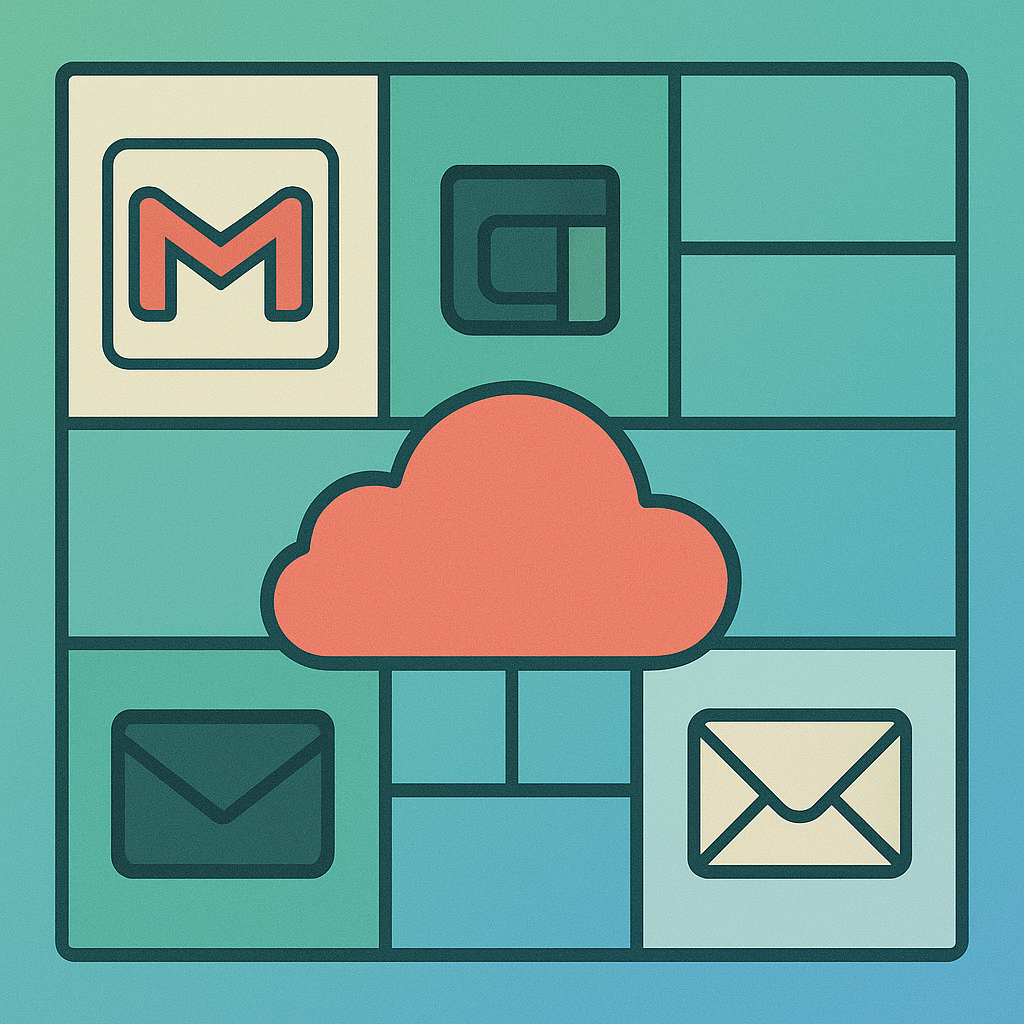
Cloud email services store your messages and attachments on remote servers managed by companies like Google or Microsoft, rather than on your personal device.
This provides incredible flexibility and reliability that local email clients simply can’t match.
What is a Cloud Email Service?
A cloud email service is an email platform where your messages, attachments, and account data are stored on remote servers (the “cloud”) rather than on your local device. This fundamental difference enables several key advantages:
- Access from anywhere: Log in from any device with internet access
- Automatic backups: Your emails are continuously backed up without manual intervention
- Seamless updates: Software improvements happen automatically without reinstallation
- Enhanced security: Professional security teams monitor and protect your data
- Simplified management: No need to maintain your own email servers
The shift to cloud email represents one of the most significant advancements in business communication, particularly for organizations that need flexible access and robust reliability.
Major Providers: Gmail, Outlook, and iCloud
The three major providers dominating the cloud email space are Gmail, Outlook, and iCloud. Each has distinct strengths:
Gmail distinguishes itself with:
- Powerful search capabilities using advanced operators
- Industry-leading spam filtering
- Generous free storage (15GB shared across Google services)
- Seamless integration with Google Workspace
- Advanced AI features like Smart Compose and Smart Reply
Outlook excels in:
- Superior calendar integration and scheduling tools
- Focused Inbox for automatic email prioritization
- Comprehensive integration with Microsoft 365 applications
- Clean, traditional email interface
- Advanced rule creation for email management
iCloud Mail offers:
- Seamless integration with Apple devices and ecosystem
- Clean, minimalist interface
- Privacy-focused approach to data handling
- Automatic syncing across Apple devices
- Hide My Email feature for enhanced privacy
Is Outlook a Cloud-Based Service?
Yes, Outlook is indeed a cloud-based service, though confusion often arises because “Outlook” refers to both the web-based cloud email service (Outlook.com) and the desktop application.
This distinction is important to understand:
- Outlook.com: The fully cloud-based email service accessible through any web browser
- Microsoft Outlook: The desktop application that can connect to various email services, including Outlook.com
Even when using the desktop app, your emails are stored in Microsoft’s cloud—the app simply provides an interface to interact with that cloud data.
This hybrid approach offers the best of both worlds: the power and features of a desktop application with the accessibility and reliability of cloud storage.
What is Outlook Cloud Called?
Microsoft’s cloud service powering Outlook is officially called Microsoft Exchange Online, part of the broader Microsoft 365 suite of services.
For most users, the technical backend isn’t important, but understanding this can help when troubleshooting issues or discussing options with IT professionals.
Exchange Online provides the infrastructure that enables features like:
- Email hosting and delivery
- Calendar and contact management
- Task tracking and management
- Mobile device synchronization
- Advanced security and compliance features
Comparing Different Cloud Email Platforms
When selecting a cloud email service, consider these key factors:
Storage allocation:
- Gmail: 15GB free (shared with Google Drive and Photos)
- Outlook: 15GB free for email alone
- iCloud: 5GB free (shared across all iCloud services)
Interface design:
- Gmail: Feature-rich, modern interface with customization options
- Outlook: Clean, traditional email layout with navigation panes
- iCloud: Minimalist design with limited customization
Ecosystem integration:
- Gmail: Seamless integration with Google Workspace and Android
- Outlook: Deep integration with Microsoft 365 and Windows
- iCloud: Optimized for Apple devices and services
Search capabilities:
- Gmail: Industry-leading search with advanced operators
- Outlook: Solid search with good filtering options
- iCloud: Basic search functionality with limited operators
Security features:
- All three offer two-factor authentication
- Gmail and Outlook provide advanced phishing protection
- iCloud emphasizes privacy with features like Hide My Email
The ideal platform depends on your specific needs, existing ecosystem investments, and personal preferences.
Many users maintain accounts on multiple platforms to leverage the strengths of each for different purposes.
Implementation Methods
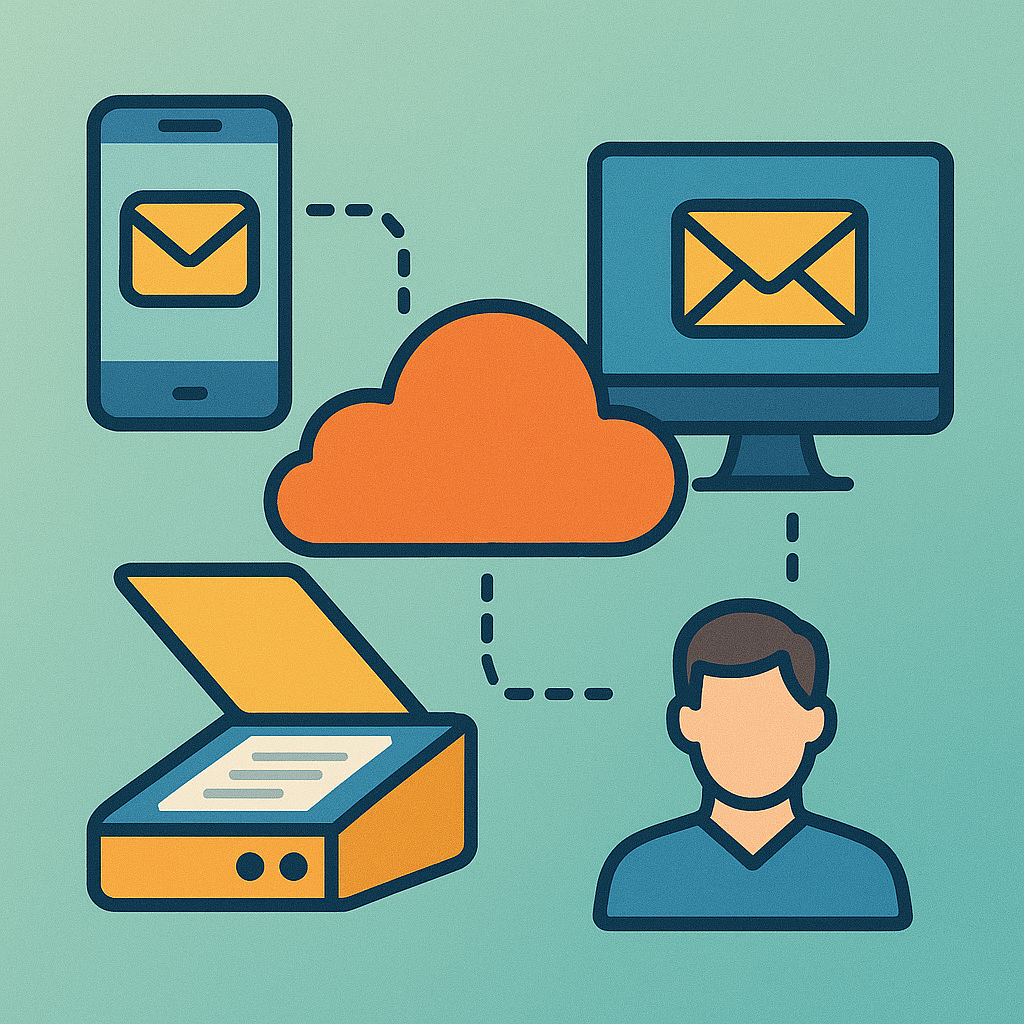
Implementing scan to email cloud integration might seem daunting at first, but breaking it down into manageable steps makes the process much simpler.
How to Scan Documents Directly to Email
Direct scan-to-email functionality eliminates the tedious process of scanning locally and then attaching files to emails.
Implementation approaches vary depending on your available equipment:
Using multifunction printers/scanners:
- Access your scanner’s settings menu or touchscreen interface
- Look for “Scan to Email” or similar option
- Enter the recipient email address (many devices allow saving frequent contacts)
- Configure scan settings (resolution, color mode, file format)
- Initiate the scan
Using smartphone apps:
- Download a scanning app like Adobe Scan
- Open the app and position your phone camera over the document
- Allow the app to detect edges and capture the image
- Review and adjust the scan if necessary
- Select the email option and enter recipient information
Using computer-connected scanners:
- Install your scanner’s software on your computer
- Look for direct email integration options
- Configure email server settings if required
- Select email as the destination when scanning
- Enter recipient information when prompted
The quality of mobile scanning has improved dramatically in recent years.
With good lighting and a steady hand, smartphone scanning apps can produce results nearly indistinguishable from dedicated scanning equipment.
Step-by-Step Guide for Cloud Scanning Integration
Setting up a comprehensive cloud scanning system involves several key stages:
- Choose your cloud storage provider
- Google Drive (15GB free, strong Google Workspace integration)
- Dropbox (2GB free, excellent sync performance)
- OneDrive (5GB free, deep Microsoft integration)
- Consider storage needs, existing ecosystem, and security requirements
- Configure your scanner
- For network-enabled scanners: Enter cloud service API information in settings
- For computer-connected scanners: Install cloud service desktop apps
- For mobile scanning: Install appropriate apps and connect to cloud accounts
- Create a folder structure
- Establish a logical organization system before scanning
- Consider categories relevant to your workflow (e.g., Invoices, Contracts, Receipts)
- Implement naming conventions for consistency
- Set default scan settings
- Resolution: 300 DPI for most documents
- Format: PDF for text documents, JPEG for photos
- Color: Black and white for text, color for documents with graphics
- OCR: Enable if available for searchable text
- Test the workflow
- Scan a test document to verify proper delivery
- Confirm file naming and folder placement
- Check accessibility from multiple devices
- Verify quality and file size are appropriate
How to Sync Documents to the Cloud
Effective document syncing ensures consistent access across all your devices:
- Install desktop sync applications
- Google Drive for Desktop
- Dropbox Desktop App
- OneDrive Client
- Configure sync settings
- Select which folders to sync to your local device
- Set sync frequency (real-time is recommended when possible)
- Configure bandwidth limitations if necessary
- Best practices for reliable syncing
- Allow sync completion before shutting down devices
- Monitor storage quotas to prevent sync failures
- Use selective sync for large collections
- Configure offline access for essential documents
- Mobile device syncing
- Install official mobile apps for your cloud services
- Configure automatic camera uploads if desired
- Set download preferences (automatic vs. on-demand)
- Manage storage usage through selective sync
Device Compatibility and Software Requirements
System requirements vary by solution, but generally include:
Scanner/hardware requirements:
- Network-enabled (“cloud-ready”) scanners for direct cloud uploads
- Any scanner with computer connection for indirect uploading
- Smartphone with 8+ megapixel camera for mobile scanning
- Minimum 5 Mbps upload speed for efficient cloud transmission
Computer specifications:
- Operating System: Windows 10/11, macOS 10.15+, or Chrome OS
- Processor: 1.6GHz dual-core or better
- RAM: 4GB minimum (8GB recommended)
- Storage: 1GB free space for sync applications
- Internet: Reliable broadband connection
Internet requirements:
- Consistent connection for sync operations
- Minimum 5 Mbps upload speed for efficient scanning
- Unlimited data plan recommended for high-volume scanning
Cloud storage needs:
- Free tiers (5-15GB) sufficient for document-only workflows
- Paid plans ($1.99-9.99/month) for higher volume needs
- Business plans for advanced security and management features
Mobile requirements:
- iOS 13+ or Android 8.0+
- 50MB+ free storage for apps
- Camera with autofocus capability
- Stable internet connection
Setting Up Automated Document Workflows
Automation elevates simple cloud scanning to a comprehensive document management system:
Document routing automation:
- IFTTT can create rules like “Move all scanned invoices to the Accounting folder”
- Zapier connects scanning apps to CRM, accounting software, or task management tools
- Email filters can sort incoming scanned documents by sender or subject
Document processing automation:
- OCR (Optical Character Recognition) converts scanned images to searchable text
- Automatic file naming based on content or date
- Text extraction for database entry
- Form field recognition and data extraction
Workflow integration options:
- Google Drive allows creating shared folders with automatic notifications
- Dropbox offers automation tools through Dropbox Automations
- Microsoft Power Automate (formerly Flow) provides complex workflow creation
- DocuSign and similar services enable automated signature workflows
Implementation tips:
- Start with simple automations and gradually increase complexity
- Use consistent naming conventions to facilitate automatic sorting
- Test automations thoroughly before relying on them
- Document your automation setup for future reference
- Schedule regular reviews to optimize workflows
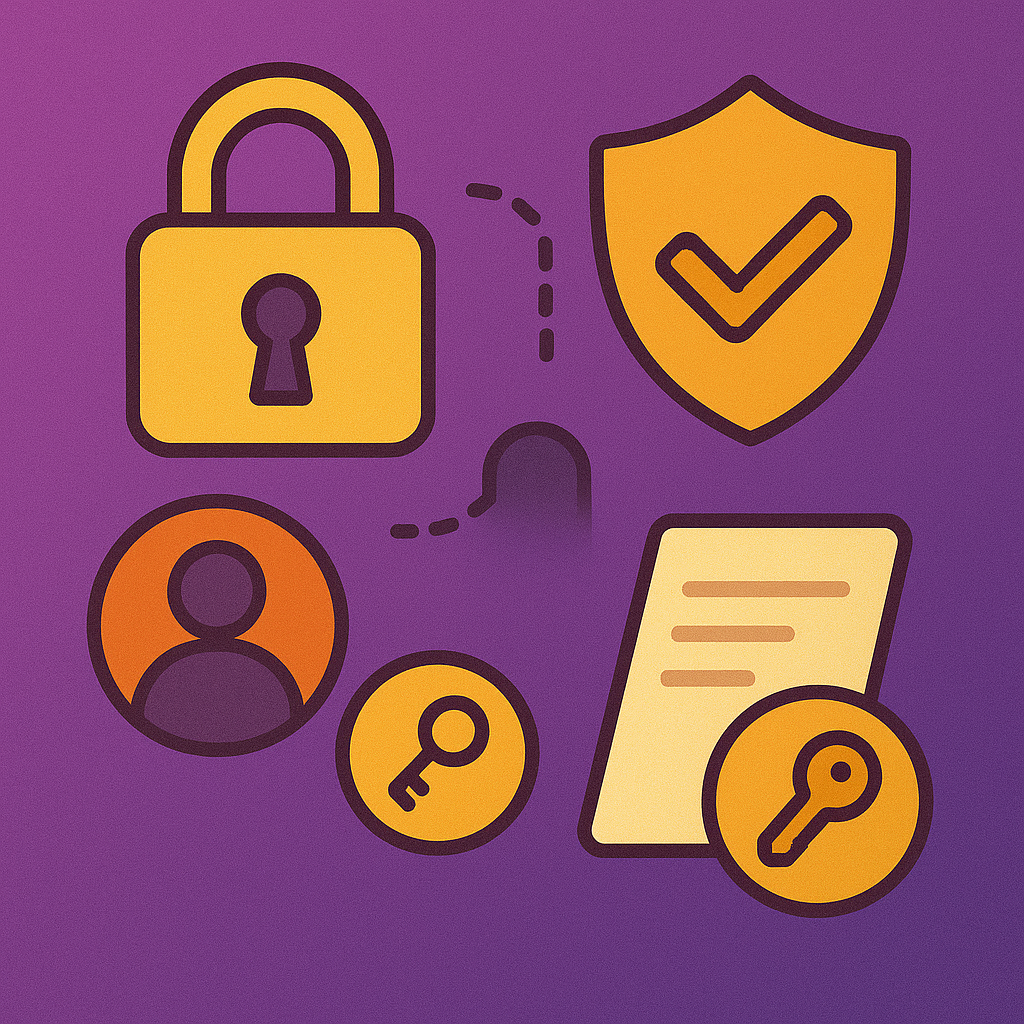
Security and Privacy Considerations
Security concerns often represent the biggest hurdle for those transitioning to cloud-based document storage.
However, with proper precautions, cloud storage can actually be safer than physical or local digital storage.
Is It Safe to Use Cloud Services for Document Storage?
Cloud storage security compares favorably to traditional alternatives in several ways:
Advantages over physical storage:
- Protection against physical damage (fire, flood, deterioration)
- Secured facilities with controlled access
- Multiple redundant copies prevent total loss
- Digital tracking of access and modifications
Advantages over local digital storage:
- Professional security teams monitoring for threats
- Regular security updates and patches
- Protection against device theft or failure
- Sophisticated encryption implementations
Potential risks and mitigation:
- Unauthorized access: Mitigated through strong authentication
- Service interruptions: Addressed through redundancy and offline access
- Provider data policies: Managed through provider selection and encryption
- Compliance concerns: Handled through specialized business services
For most users and organizations, the security benefits of reputable cloud services outweigh the risks, especially when following best practices for account security and document handling.
How Providers Protect Your Scanned Documents
Major cloud providers implement multiple security layers:
Encryption technologies:
- In-transit encryption (TLS/SSL) protects data while moving
- At-rest encryption secures stored documents
- End-to-end encryption prevents provider access in some services
Authentication systems:
- Two-factor authentication adds a physical verification step
- Single sign-on improves security through centralized authentication
- Biometric verification on mobile devices
- Advanced options like security keys for maximum protection
Infrastructure security:
- Redundant data centers prevent service interruptions
- Physical security at data center facilities
- Regular security audits and penetration testing
- Continuous monitoring for unusual activities
Access controls:
- Granular permissions for viewing, editing, and sharing
- Domain-restricted sharing options for business accounts
- External sharing restrictions and expiration dates
- Activity logs tracking all document interactions
These enterprise-grade security measures typically exceed what individuals or small organizations could implement independently.
Where to Be Careful When Using Cloud Services
Despite robust security measures, certain situations warrant additional caution:
Public network usage:
- Avoid accessing sensitive documents on public WiFi
- Use a VPN like NordVPN when working remotely
- Disable automatic connections to unknown networks
- Consider mobile data instead of public WiFi for sensitive work
Third-party application permissions:
- Review access permissions before connecting apps to cloud storage
- Regularly audit and revoke access for unused applications
- Use OAuth rather than providing direct credentials
- Be cautious with browser extensions requesting cloud access
Document sharing practices:
- Verify recipient email addresses before sharing sensitive documents
- Use “view only” permissions when editing isn’t necessary
- Set expiration dates on temporary shares
- Password-protect highly sensitive shared documents
- Disable download options when possible for sensitive content
Account security weaknesses:
- Use unique passwords for cloud service accounts
- Enable login notifications for unusual access attempts
- Log out from shared or public computers
- Regularly review logged-in devices and sessions
Best Practices for Securing Your Cloud-Stored Documents
Implement these essential security measures to protect your documents:
Account security:
- Use strong, unique passwords managed through a password manager like LastPass
- Enable two-factor authentication on all cloud services
- Set up recovery options (backup email, phone number)
- Regularly review account activity and active sessions
Document organization for security:
- Create a tiered system based on sensitivity levels
- Use separate folders with different sharing settings
- Consider different services for different sensitivity levels
- Implement clear naming conventions for security levels
Regular security maintenance:
- Audit sharing permissions quarterly
- Review third-party app connections
- Update contact information for recovery options
- Check for new security features offered by providers
Backup strategies:
- Maintain encrypted local copies of critical documents
- Consider multi-cloud backup for maximum redundancy
- Test recovery procedures periodically
- Keep offline backups of irreplaceable documents
Communication security:
- Be vigilant about phishing attempts targeting cloud credentials
- Verify unexpected sharing notifications through separate channels
- Don’t click links in emails claiming to be from cloud providers
- Contact support through official channels if suspicious activity occurs
Understanding Provider Scanning Policies
Cloud providers have different approaches to scanning document content:
Google’s approach:
- Scans documents to enable search functionality
- Uses automated systems to detect malware and prohibited content
- Previously scanned content for ad targeting (discontinued for Gmail)
- Allows turning off some data collection in account settings
Microsoft’s policies:
- Focuses scanning on security threat detection
- Implements compliance features for business accounts
- Provides encrypted storage options through Information Protection
- Offers detailed audit logs of scanning activities
Apple’s philosophy:
- Emphasizes privacy as a core selling point
- Implements on-device processing where possible
- Reduced CSAM scanning plans after user feedback
- Provides detailed transparency reports about data use
Amazon AWS policies:
- Primarily scans for security threats rather than content analysis
- Offers compliance certifications for regulated industries
- Provides server-side encryption options
- Focuses on infrastructure security rather than content analysis
Enhanced privacy options: For highly sensitive documents, consider specialized services:
- Tresorit: Offers zero-knowledge encryption and GDPR compliance
- Sync.com: Provides end-to-end encryption with no provider access
- ProtonDrive: Created by the team behind ProtonMail with privacy focus
These services typically offer fewer features and integration options in exchange for enhanced privacy protections.

Advanced Features and Troubleshooting
As you become more comfortable with basic scan-to-cloud functionality, exploring advanced features and knowing how to troubleshoot common issues will help you maximize the benefits of this technology.
Document Management Techniques in the Cloud
Effective cloud document management requires strategies different from physical filing:
Naming conventions:
- Include date in consistent format (YYYY-MM-DD) for chronological sorting
- Use descriptive categories in filenames (Invoice, Contract, Receipt)
- Include relevant identifiers (client names, project codes)
- Keep filenames concise while remaining descriptive
- Example: “2025-05-17_Invoice_Acme-Project.pdf”
Folder structures:
- Create a hierarchy balancing breadth and depth
- Limit nesting to 3-4 levels for easier navigation
- Use consistent naming across all folders
- Consider both access needs and logical grouping
- Example structure: Department > Project > Document Type > Files
Metadata and tagging:
- Use service-specific tagging features for cross-category organization
- Add custom properties when supported
- Implement color-coding for visual organization
- Create tag taxonomies for consistent application
- Apply metadata during the scanning process when possible
Version control best practices:
- Enable version history features in your cloud service
- Use descriptive comments when updating documents
- Consider major/minor version numbering for important documents
- Establish clear “current version” identification
- Set retention policies for historical versions
Template management:
- Create cloud-based templates for recurring document types
- Store templates in a dedicated, easily accessible location
- Implement access controls to prevent template modifications
- Consider form-fillable PDF templates for consistent data collection
- Use template links rather than copies to ensure updates propagate
Integration with Document Management Systems
For organizations needing more robust capabilities, dedicated Document Management Systems (DMS) offer enhanced features:
Popular DMS options:
- DocuWare Cloud: Enterprise-grade solution with workflow automation
- PaperPort: Affordable option with good organization features
- M-Files: Metadata-driven system with advanced search
- SharePoint: Microsoft’s collaboration-focused solution
- Box: Cloud platform with extensive integration options
Key integration considerations:
- API availability for connecting scanning devices
- Authentication method compatibility
- Workflow automation capabilities
- Mobile app quality and features
- OCR and search functionality
- Cost structure and scalability
Implementation approaches:
- Start with a needs assessment and feature priority list
- Test with a small document set before full commitment
- Develop clear metadata and organization standards
- Train users thoroughly before full deployment
- Implement in phases rather than all at once
Integration with other systems:
- Connect to CRM systems for client document management
- Link with accounting software for financial documents
- Integrate with project management tools
- Connect to Learning Management Systems in educational settings
- Link to e-signature services for document completion workflows
Common Troubleshooting Issues
Understanding and resolving common problems ensures smooth operation:
Connection problems:
- Symptoms: Scanner unable to reach cloud service, upload failures
- Troubleshooting steps:
- Verify scanner is properly connected to network
- Check cloud service status pages for outages
- Confirm account credentials haven’t expired
- Restart scanner and network equipment
- Check for firmware updates
- Verify firewall settings allow necessary connections
Permission errors:
- Symptoms: Access denied messages, inability to view or upload documents
- Troubleshooting steps:
- Verify account permissions for the destination folder
- Check for organization policy restrictions
- Confirm storage quota hasn’t been exceeded
- Review sharing settings and recipient access
- Check for conflicting permissions across folder hierarchies
File size limitations:
- Symptoms: Failed uploads, truncated documents, timeout errors
- Solutions:
- Check service-specific limitations (typically 25MB for email, 2-5GB for storage)
- Use compression settings on scanner
- Split large documents into smaller parts
- Reduce resolution for non-critical documents
- Use file transfer services for oversized documents
Format compatibility issues:
- Symptoms: Unable to view documents, corrupted files, missing content
- Solutions:
- Use widely supported formats (PDF, JPEG) rather than proprietary formats
- Update viewing applications to latest versions
- Convert files to more compatible formats using online tools
- Check for special characters in filenames causing problems
- Verify scanner output settings match intended use case
OCR and searchability problems:
- Symptoms: Text not searchable, incorrect text recognition
- Solutions:
- Ensure OCR is enabled in scanner settings
- Scan at sufficient resolution (minimum 300 DPI)
- Use clean, high-contrast originals when possible
- Try alternative OCR software for difficult documents
- Manually verify and correct critical documents
Optimizing Scan Quality for Cloud Storage
Balancing quality and efficiency requires understanding several key factors:
Resolution settings:
- 300 DPI: Standard for most document scanning
- 150 DPI: Acceptable for basic text when storage is limited
- 600 DPI: For documents with small text or requiring high detail
- 1200+ DPI: Specialized needs like archival or legal documentation
Color mode selection:
- Black & white (1-bit): Smallest files, best for text-only documents
- File size: ~50KB per page
- Best for: Plain text documents, forms without images
- OCR performance: Excellent for clear text
- Grayscale (8-bit): Good middle ground for mixed content
- File size: ~200KB per page
- Best for: Documents with signatures, simple images, or photos
- OCR performance: Good for most text, handles highlighting better
- Color (24-bit): Necessary for documents where color matters
- File size: ~500KB+ per page
- Best for: Marketing materials, documents with charts/graphics
- OCR performance: Can be challenging with colored backgrounds
File format considerations:
- PDF: Versatile format supporting text, images, and searchability
- Advantages: Widely supported, maintains formatting, allows security features
- Disadvantages: Can be larger than alternatives, requires PDF reader
- JPEG: Efficient for image-heavy documents
- Advantages: Small file size, universal compatibility
- Disadvantages: Lossy compression, text degradation, no multi-page support
- PNG: Lossless quality but larger size
- Advantages: Perfect quality reproduction, good for screenshots
- Disadvantages: Larger files, no native multi-page support
- TIFF: High-quality format often used for archival
- Advantages: Lossless quality, multi-page support
- Disadvantages: Large file size, less universal support
Compression techniques:
- Enable “optimize for web” options when available
- Use PDF compression tools for large documents
- Consider PDF/A for archival purposes (self-contained but larger)
- Test different compression settings to find optimal balance
Specialized scanning considerations:
- Increase contrast slightly for better OCR performance
- Use de-skew features for misaligned documents
- Enable blank page detection for double-sided scanning
- Consider scanning in sections for oversized documents
Future Trends in Scan-to-Cloud Integration
The landscape continues to evolve with several promising developments:
AI-powered document intelligence:
- Automatic document classification by content
- Intelligent data extraction from forms
- Natural language processing of document content
- Anomaly detection for unusual documents or patterns
- Content summarization and key point extraction
Voice and gesture control:
- Voice-activated scanning workflows
- Natural language commands for document routing
- Gesture recognition for contactless scanner operation
- Conversational interfaces for document retrieval
- Voice biometrics for secure authentication
Mobile scanning advancements:
- Computational photography improvements for better quality
- Real-time edge detection and perspective correction
- Automatic glare and shadow removal
- Document stitching for oversized materials
- Background removal and cleanup
Blockchain applications:
- Immutable audit trails for sensitive documents
- Document verification and authentication
- Smart contracts for automated document workflows
- Decentralized storage for maximum redundancy
- Verified credential management
Integration standardization:
- TWAIN Direct protocol adoption
- Cloud service interoperability improvements
- Standard APIs for scanner-to-cloud communication
- Unified authentication frameworks
- Cross-platform workflow standards
Handwriting and analog content improvements:
- Enhanced handwriting recognition accuracy
- Conversion of handwritten notes to searchable text
- Sketch and diagram recognition
- Mixed media document handling
- Historical document processing and preservation
These emerging technologies will continue to make scan-to-cloud integration more intelligent, accessible, and valuable across all sectors.
Conclusion
The evolution from paper-based systems to scan-to-cloud integration represents one of the most significant productivity advancements in document management history.
What once required physical storage, manual organization, and limited accessibility has transformed into a seamless system where documents can be captured, stored, shared, and accessed from anywhere in the world.
As we’ve explored throughout this comprehensive guide, implementing scan-to-email integration with cloud services offers tremendous benefits:
- Efficiency gains through streamlined workflows and automated processes
- Accessibility improvements enabling work from anywhere, on any device
- Collaboration enhancements through real-time document sharing and co-editing
- Security advancements with enterprise-grade protection and redundancy
- Cost savings from reduced paper, storage, and manual handling expenses
The key to success lies in thoughtful implementation:
- Assess your specific document management needs
- Select appropriate tools and services for your requirements
- Create organized systems before beginning mass digitization
- Implement strong security practices from the start
- Train all users thoroughly on new workflows
- Start with small projects and scale gradually
Whether you’re a teacher managing classroom materials, an accountant organizing client documents, or simply someone trying to reduce paper clutter at home, the principles and techniques outlined in this guide provide a comprehensive framework for building an effective document management system.
Ready to transform your document workflow?
Start with a single process—perhaps a specific document type you handle frequently—and apply these principles.
As you become comfortable, gradually expand to additional document types and more complex workflows. The productivity benefits compound with each process you optimize.
Remember: the days of drowning in paper or losing critical documents to computer crashes are behind us.
With thoughtful implementation of scan-to-cloud integration, you can create a document management system that becomes an asset rather than a burden—saving time, reducing stress, and enabling you to focus on what truly matters in your work and life.

Recent Posts
Monday.com Review 2026: Is It Still the Best Work OS?
I tested Monday.com against ClickUp, Asana, and Wr...
Updated May 30, 2026

AI Writing Software for Blogging in 2026: Best Tools + How to Stay AI-Search Vis...
The best AI writing software for blogging in 2026 ...
Updated May 30, 2026
HubSpot Review 2026: Is It Worth the Cost?
I tested HubSpot’s free CRM, Starter, and Pr...
Updated May 29, 2026
Teamwork.com Review 2026: Is It the Best PM Tool for Client Work?
I tested Teamwork.com for agency and client projec...
Updated May 29, 2026
Wrike Review 2026: Is It Worth the Cost?
I tested Wrike in real enterprise workflows. Here&...
Updated May 29, 2026
Asana Review 2026: Is It Worth It? (Honest, In-Depth Analysis)
I tested Asana across real team workflows. Here...
Updated May 29, 2026
Newsletter
Don't miss a thing!
Sign up to receive daily news