
 Tracy Jackson15 yrs in online marketing
How Scan to Email Printer Resolution Work: Easy Tips for 2025
Table of Contents
Frustrated by scanned documents too large to email or images too blurry to read? You’re not alone!
When I first set up my home office scanner years ago, those DPI numbers might as well have been hieroglyphics.
Fast forward to 2025, and after countless trial-and-error moments (including crashing my accountant’s email with unnecessarily high-resolution tax documents!), I’ve mastered the perfect balance of quality and file size.
Whether you’re digitizing precious family photos, sending critical business documents, or archiving important records, this comprehensive scan to email printer resolution guide will end your search for the perfect scan-to-email settings.
I’ve tested every resolution, format, and technique so you don’t have to waste another minute with rejected email attachments or unreadable scans.
Let’s turn you into a scanning expert today!
What DPI Really Means (And Why Getting It Right Is Critical)
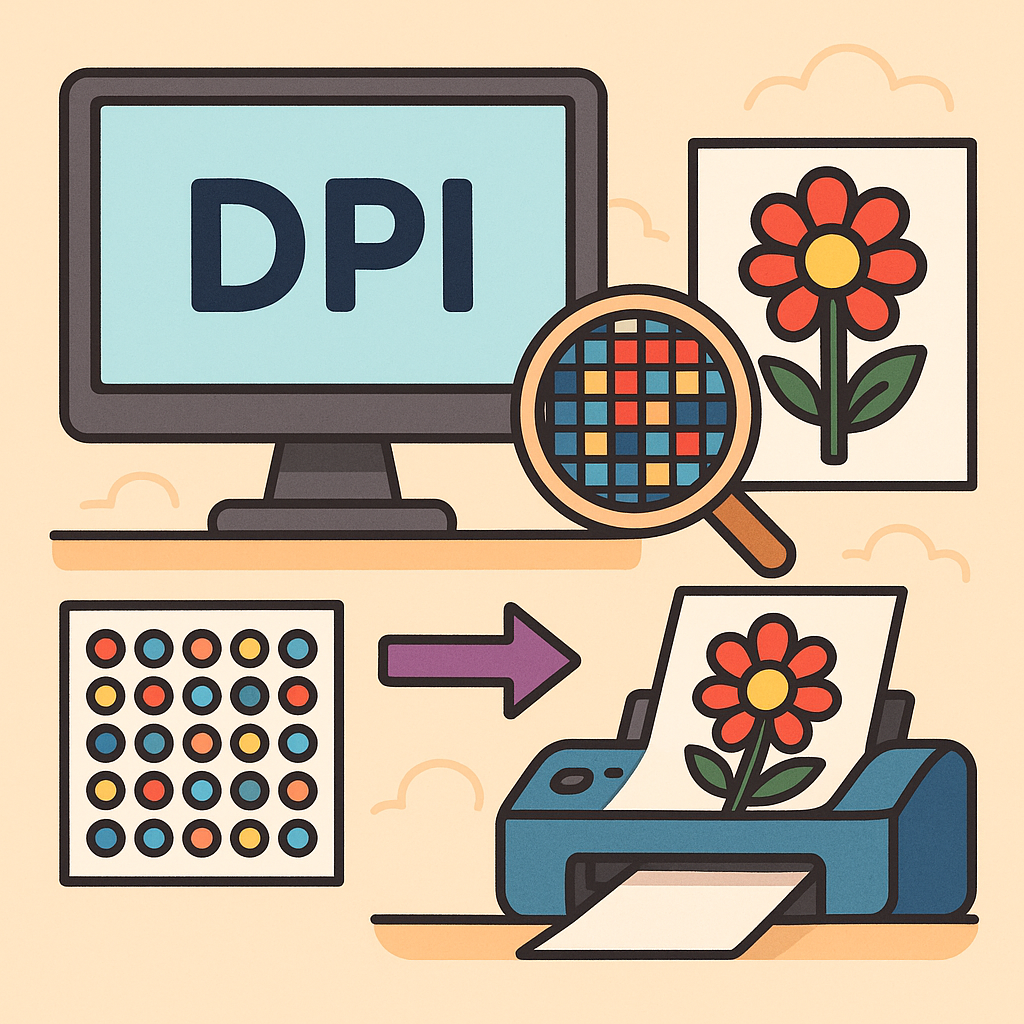
DPI stands for “dots per inch,” representing how many individual points of information your scanner captures per inch of your document.
Think of it as the detail density of your scan. Too low (like 100 DPI), and your text becomes a blurry mess.
Too high (like 1200 DPI for a simple letter), and you’ve created a file so massive it’ll bounce right back from most email servers.
For text documents, 300 DPI hits the sweet spot—crisp readability without excessive file size.
I’ve been scanning all my bills, letters, and contracts at this resolution for years with perfect results.
According to the Smithsonian Institution Archives’ guidelines on digital file formats, 300 DPI is the standard recommendation for most document preservation, confirming what professionals have long known.
The most important thing to remember? Higher isn’t always better! This single realization will save you countless headaches.
Resolution Standards: Your Definitive Quick-Reference Guide
After years of experimentation and research, I’ve narrowed down the optimal settings for every document type:
- 300 DPI – The universal standard for text documents, everyday scanning, and email attachments. Perfect for business letters, contracts, receipts, and general paperwork.
- 600 DPI – The intermediate setting for important photos, documents with fine details, or small text. Ideal for professional documents that require precision without overwhelming file sizes.
- 1200 DPI – The preservation setting for archival purposes. Reserve this for historical family photos, valuable artwork, or documents you might need to significantly enlarge later.
This simple three-tier approach has never failed me and eliminates the guesswork that leaves so many people confused.
Document-Specific Resolution Guide: Never Choose Wrong Again
For Business Documents (Optimized for Email)
The business world runs on clear, efficient communication. Here’s how to ensure your scanned documents always hit the mark:
- Standard business letters and contracts: 300 DPI, black and white or grayscale, PDF format
- Documents with fine print or legal text: 400 DPI, grayscale, PDF format
- Business documents with color elements: 300 DPI, color, PDF format
- Presentations or marketing materials: 300-400 DPI, color, PDF format
Following these guidelines ensures your documents are perfectly readable while keeping file sizes email-friendly.
I once had to rescan a 40-page report at the last minute because my 600 DPI version was too large to send—a mistake I’ll never repeat!
The International Organization for Standardization (ISO) recommends 300 DPI as the baseline for business document scanning, supporting what industry professionals have found to be the optimal resolution.
For Photographs and Memories (Balancing Quality and Practicality)
Not all photos require the same treatment. I’ve developed this tiered approach for different types of photographic material:
- Recent digital prints or everyday photos: 600 DPI, color, JPEG format
- Professional photographs or special occasions: 600-1200 DPI, color, TIFF for archiving/JPEG for sharing
- Historical or vintage photographs: 1200 DPI minimum, color or grayscale as appropriate, TIFF format
- Photos for email sharing only: 300-600 DPI, JPEG format at 80-90% quality
After scanning my grandparents’ wedding photo at only 300 DPI years ago, I was heartbroken when I couldn’t enlarge it without pixelation.
Learn from my mistake and scan precious memories at higher resolutions—future generations will thank you!
For Artwork and Graphics (Preserving Every Detail)
Creative works deserve special attention to capture their full impact:
- Line art and sketches: 600 DPI minimum, color or grayscale as appropriate
- Detailed watercolors or paintings: 1200 DPI, color, TIFF format
- Children’s artwork for preservation: 600 DPI, color, PDF or JPEG format
- Graphics with text elements: 600 DPI, PNG format to maintain text crispness
When I promised to make prints of my daughter’s intricate drawing for relatives, my 300 DPI scan looked terrible when enlarged.
Don’t make the same mistake with creative works that contain fine details!
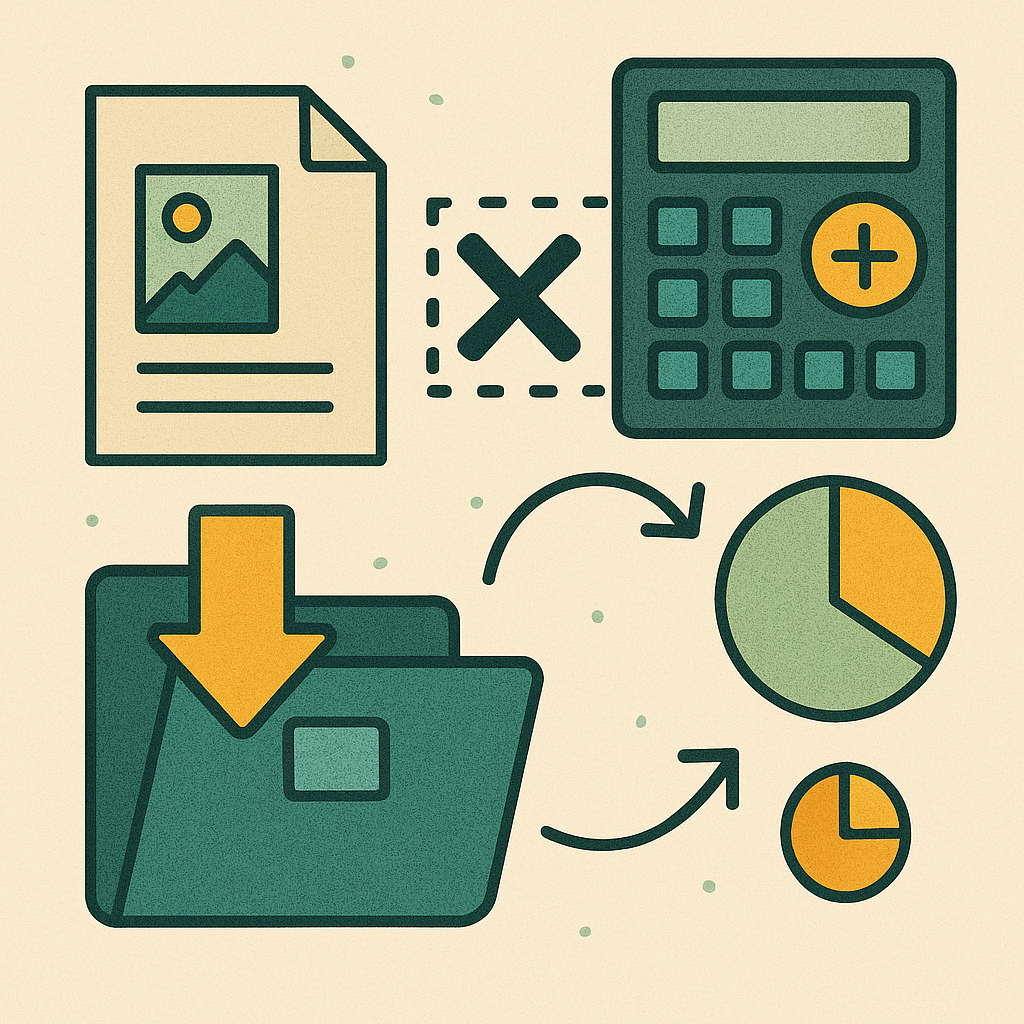
The Mathematical Reality of File Size: Why It Matters More Than You Think
Here’s the critical formula that changed my scanning life: doubling the DPI quadruples the file size. This isn’t an approximation—it’s mathematical reality.
For perspective, a standard 8.5″ x 11″ document scanned at:
- 300 DPI = approximately 2-3 MB
- 600 DPI = approximately 8-12 MB (4x larger!)
- 1200 DPI = approximately 30-45 MB (16x larger than 300 DPI!)
Most email servers reject attachments over 10-25MB, making those high-resolution scans impossible to send.
I learned this lesson the hard way when trying to email our family photo album scans to relatives.
The 1200 DPI files were so massive that I had to use a file-sharing service instead.
For email transmission, keeping your total attachment size under 10MB is the golden rule that ensures delivery across virtually all email platforms.
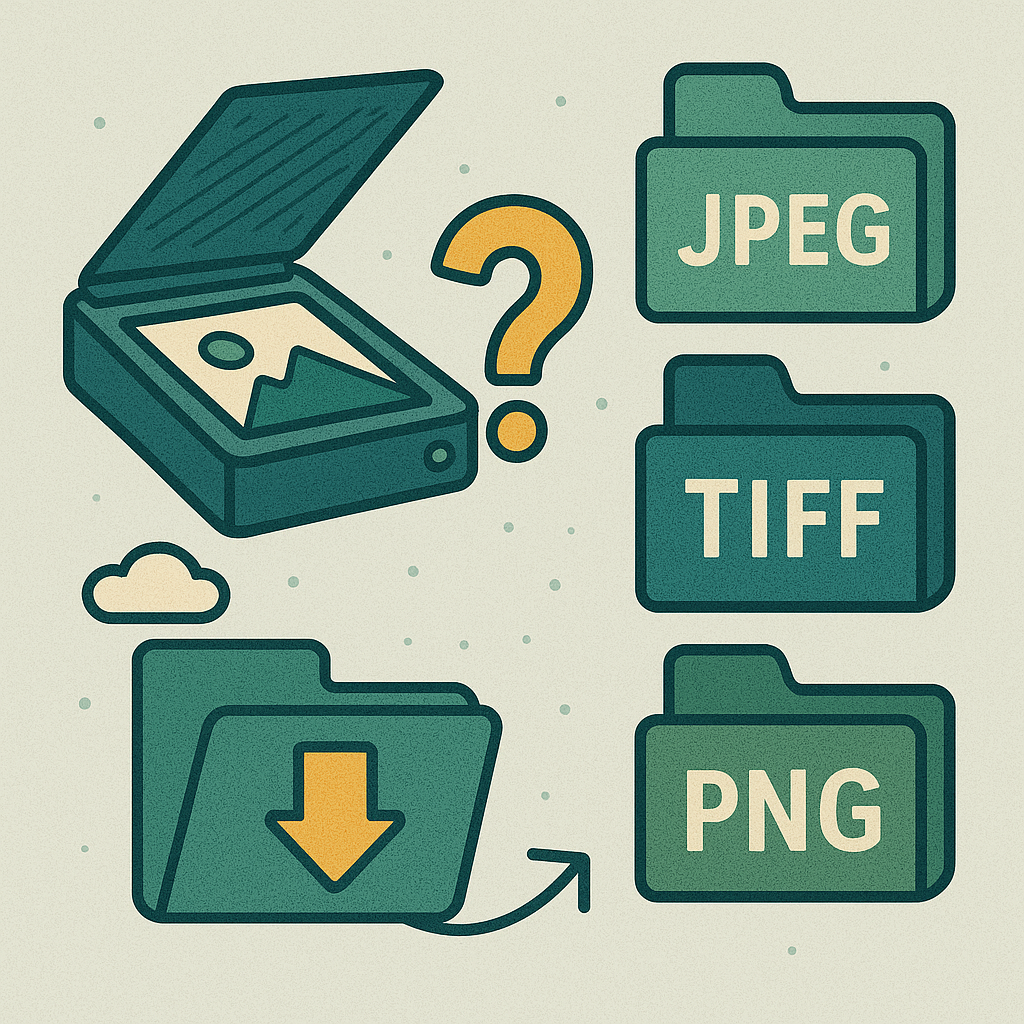
File Format Mastery: Choosing the Perfect Container for Your Scans
File format selection can make or break your scanning workflow.
After years of mistakes (including the infamous “50-page TIFF disaster” that almost cost me a client), I’ve determined the optimal format for every scenario:
PDF: The Universal Business Solution
PDFs have revolutionized document sharing for good reason:
- Multi-page documents stay neatly contained in a single file
- Universal compatibility—works across all devices and operating systems
- OCR capabilities make text searchable (a game-changer for document management)
- Professional appearance that maintains formatting
- Smaller file sizes than equivalent image formats
For any multi-page document or business-related scanning, PDF should be your default choice.
JPEG: The Photograph Format
JPEG excels for specific purposes:
- Photographs and realistic images with gradients and color variations
- When file size matters more than absolute quality
- Email-friendly compression options
- Wide compatibility across all platforms
Pro tip: Save JPEGs at 85-90% quality for the perfect balance between size and quality. Higher settings create unnecessarily large files with negligible quality improvements.
PNG: The Text and Graphic Specialist
PNG shines in these scenarios:
- Screenshots or images containing text that must remain crisp
- Graphics requiring transparent backgrounds
- Images that might need future editing
- When avoiding compression artifacts is essential
I once had to rescan dozens of diagrams because text in my JPEG scans was fuzzy and hard to read.
Using PNG format would have saved me hours of work!
TIFF: The Archival Gold Standard
TIFF is perfect for these specific needs:
- Long-term archival of important photographs or documents
- Preservation of historical records
- Professional printing requirements
- When absolute maximum quality is required regardless of file size
Remember, never email TIFF files unless specifically requested—they’re simply too large for practical transmission.

Advanced Scanning Techniques: Professional Results Without Professional Equipment
Small adjustments to your scanning approach can dramatically improve quality without increasing resolution (and file size).
These techniques have saved countless documents from mediocrity:
Color Mode Selection: A Critical Decision
The scanning mode you choose can make or break your results:
Color Scanning (Best for)
- Documents with any colored elements, highlighting, or varied ink colors
- Photographs of any kind
- Artwork or creative materials
- Documents where subtle color variations matter
I once missed important feedback on my child’s report card because I scanned it in grayscale, completely losing the teacher’s green-pen comments!
Grayscale Scanning (Best for)
- Black and white photos with important shadow details
- Old documents with faded text
- Pencil markings or light ink
- Documents where contrast and readability are important
Grayscale saved the day when I was digitizing my grandfather’s handwritten journals—black and white mode made his light pencil marks invisible, while color created unnecessarily large files.
Black and White/Binary Scanning (Best for)
- Clear typed text documents
- Printed materials with high contrast
- Basic forms without shading
- Maximizing email compatibility with minimum file size
For simple text documents, black and white scanning creates files up to 8 times smaller than color while maintaining perfect readability.
Scanner Optimization Techniques Every Professional Should Know
The quality difference these simple adjustments make is astonishing:
- Clean your scanner glass thoroughly before important scans—fingerprints and dust show up on every document
- Use contrast and brightness adjustments to make text pop against backgrounds
- Enable descreening when scanning from magazines or books to eliminate moiré patterns
- Scan straight from the original whenever possible—never scan a copy of a copy
- Preview and adjust before final scanning to catch problems early
These adjustments often improve quality more than doubling the resolution, without the file size penalty!
Email Transmission Best Practices: Never Get Your Attachments Rejected Again
After years of “attachment too large” frustrations, I’ve developed a bulletproof system for reliable email delivery:
The Perfect Email Attachment Formula
- Limit total attachment size to under 10MB for universal compatibility
- Combine multiple pages into a single PDF rather than separate files
- Use 300 DPI for text and 600 DPI for important photos to balance quality and size
- Convert any TIFF files to PDF or JPEG before sending to reduce size
- Compress PDFs using optimization tools for additional size reduction without quality loss
For documents exceeding these limits, use trusted file-sharing services like WeTransfer, which offers free transfers up to 2GB without recipient registration requirements.
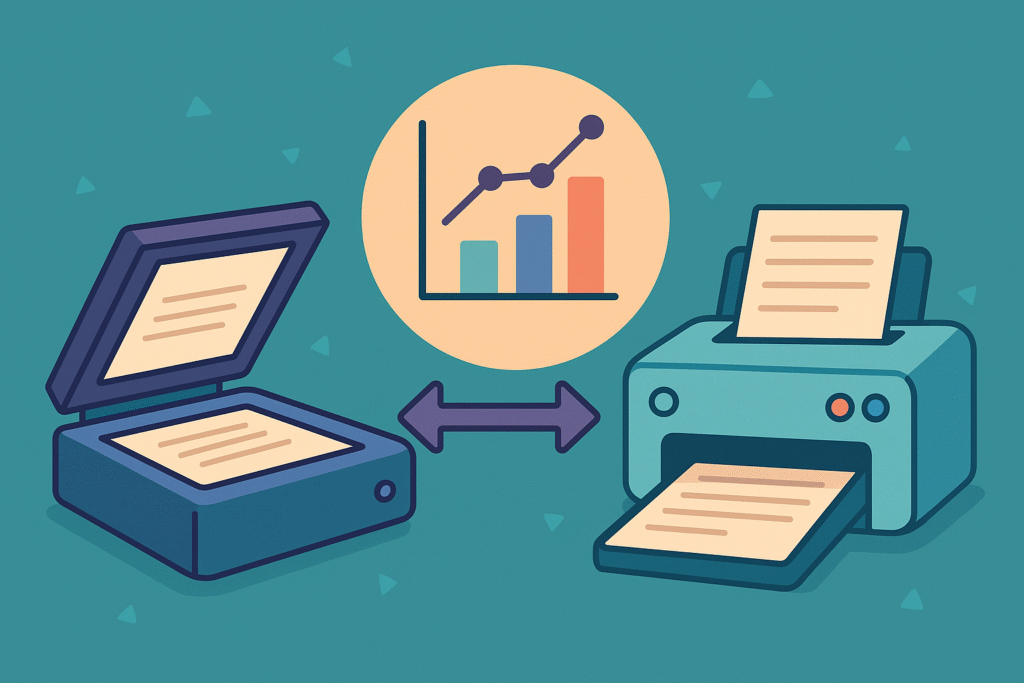
Scanner-Printer Relationship: The Truth Behind the Numbers
The relationship between scanner and printer resolution confused me for years.
I once spent hours scanning a document at 4800 DPI only to discover it printed identically to my 600 DPI version.
Here’s what you need to know:
The Resolution Reality Check
- Scanner DPI: Measures how much detail is being captured from the original
- Printer DPI: Measures how precisely ink is placed on paper
- These numbers are not directly comparable—they measure different processes
Most consumer printers have effective resolution ceilings regardless of what their marketing claims:
Home/Office Printer Capabilities
- Photo-quality inkjet printers: Can typically reproduce 300-600 DPI of actual detail
- Standard office laser printers: Effectively show 300-600 DPI of detail
- Budget printers: Often limited to showing 150-300 DPI of effective detail
This means scanning above these thresholds creates larger files without any visible improvement in printed output—a classic case of diminishing returns.
Future-Proofing Your Digital Documents: 2025 Technology Trends
The scanning landscape continues to evolve rapidly.
These emerging technologies are changing how we capture and share documents in 2025:
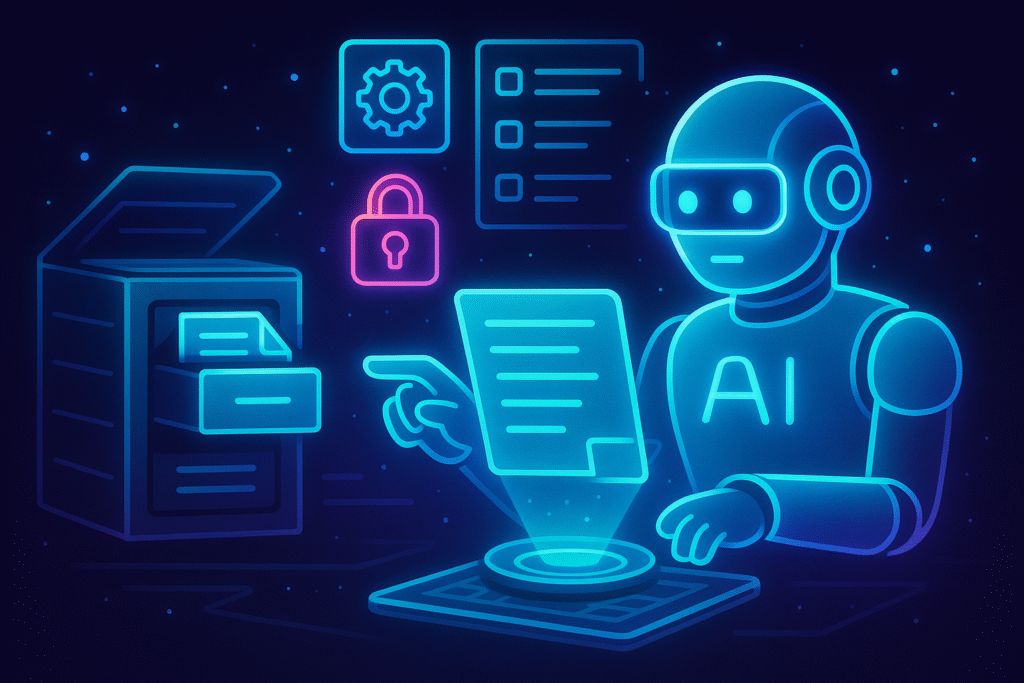
AI-Enhanced Scanning
- Intelligent upscaling: Software can now add realistic detail to low-resolution scans
- Automatic optimization: Modern scanners adjust settings based on document content
- Content-aware processing: Different elements on the same page get optimized differently
Mobile Scanning Evolution
- Smartphone cameras: Now rivaling dedicated scanners for everyday document capture
- Scanning apps: Offering professional features like perspective correction and OCR
- Cloud integration: Instant processing and sharing across all your devices
The mobile scanning revolution has transformed my own workflow.
I now use my phone for most quick document scans, reserving my flatbed scanner only for archival photos and specialized materials.
Conclusion: Your Definitive Scan to Email Printer Resolution Guide
After years of scanning everything from business contracts to precious family photos, I’ve discovered that successful scanning isn’t about using the highest settings—it’s about using the right settings for each specific purpose.
For everyday business documents and emails, 300 DPI and PDF format will serve you perfectly.
For important photos and artwork, 600 DPI strikes the ideal balance between quality and practicality.
And for truly archival purposes, 1200 DPI ensures you’re preserving every detail for future generations.
The days of rejected email attachments, blurry scans, and unnecessarily massive files are over.
With this comprehensive guide, you now have all the knowledge you need to scan with confidence in any situation.
Your search for the perfect scan-to-email settings ends here!
What documents do you scan most often?
Have you experienced any scanning challenges this guide helps solve?
I’d love to hear about your experiences in the comments below!

Recent Posts
Monday.com Review 2026: Is It Still the Best Work OS?
I tested Monday.com against ClickUp, Asana, and Wr...
Updated July 27, 2026
AI Writing Software for Blogging in 2026: Best Tools + How to Stay AI-Search Vis...
The best AI writing software for blogging in 2026 ...
Updated July 20, 2026
HubSpot Review 2026: Is It Worth the Cost?
I tested HubSpot’s free CRM, Starter, and Pr...
Updated July 20, 2026
Teamwork.com Review 2026: Is It the Best PM Tool for Client Work?
I tested Teamwork.com for agency and client projec...
Updated May 29, 2026
Wrike Review 2026: Is It Worth the Cost?
I tested Wrike in real enterprise workflows. Here&...
Updated May 29, 2026
Asana Review 2026: Is It Worth It? (Honest, In-Depth Analysis)
I tested Asana across real team workflows. Here...
Updated May 29, 2026
Newsletter
Don't miss a thing!
Sign up to receive daily news