
 Tracy Jackson15 yrs in online marketing
The Best Mobile Scan to Email Printer Apps in 2025: Reviewed
Table of Contents
Remember when scanning a document meant standing at a clunky office machine, waiting for it to warm up, only to have it jam halfway through?
Those days are thankfully behind us!
As a tech writer who’s tested over 30 different scan to email printer apps in the last year alone, I’ve watched this technology transform from a convenient novelty to an essential productivity tool.
Whether you’re a teacher digitizing assignments, a business professional handling contracts, or someone trying to reduce paper clutter, today’s scan to email printer apps offer impressive capabilities that rival traditional hardware scanners.
Let me walk you through everything you need to know about selecting and using the perfect solution for your specific needs!
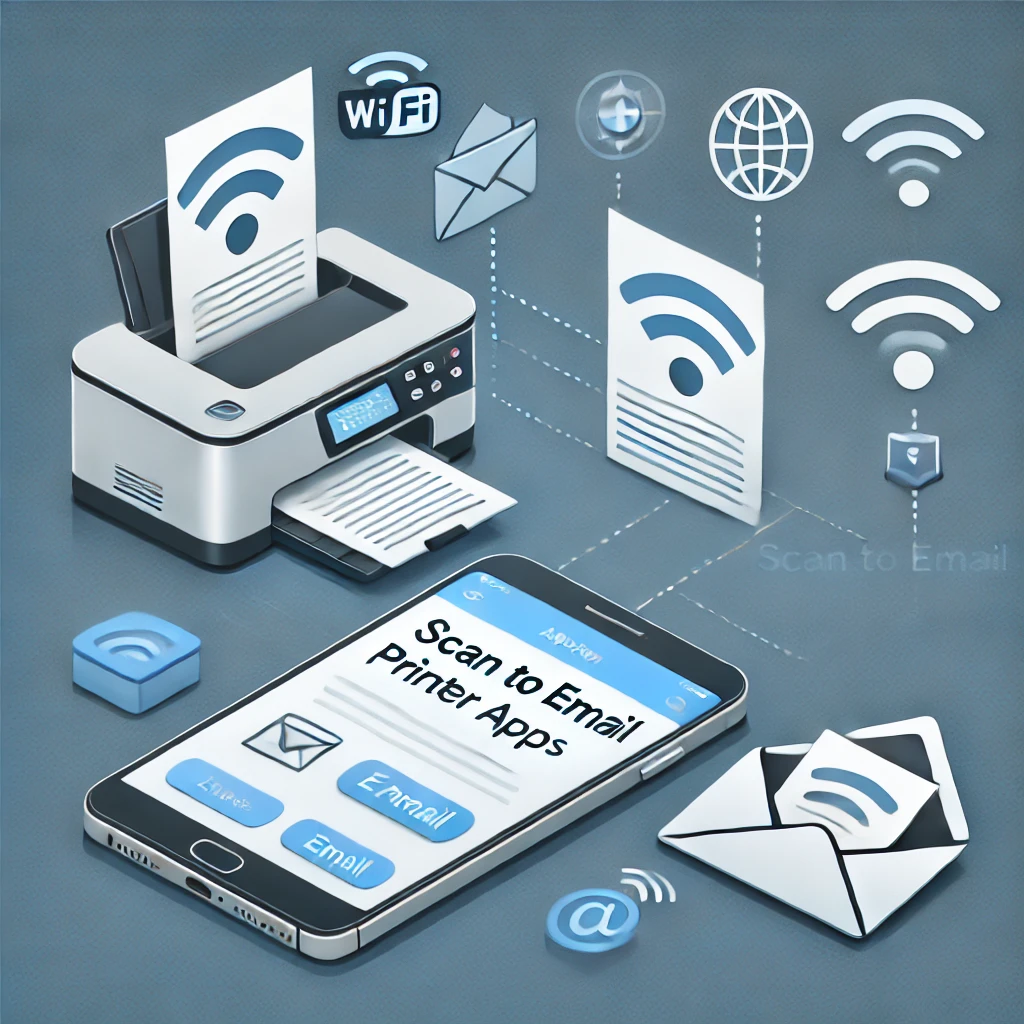
Popular Scan to Email Applications
Let me tell you, I’ve been down the rabbit hole of scanning apps more times than I care to admit.
Back when I was organizing my filing cabinet (what a nightmare that was!) I realized I needed a better solution.
The Big Players in the Scanning Game
My first adventure was with Adobe Scan, which honestly changed my life.
I remember downloading it during a conference when I needed to quickly share some work samples.
The app detected edges automatically, which was a game-changer for someone like me who can’t seem to hold my phone steady!
Google Drive’s scanning feature became my go-to for quick scans.
It’s built right into the Google Drive app, which means one less app taking up space on my phone.
Plus, everything automatically saves to my Drive, which is where most of my paperwork live anyway.
CamScanner deserves an honorable mention too.
I discovered this one when a colleague recommended it, and I was impressed by how well it handled document enhancement.
The app not only scans but also offers impressive editing tools to make your documents look professional.
Free vs. Premium: What You Actually Get
Here’s something I learned the hard way – “free” doesn’t always mean completely free.
I started with Adobe Scan’s free version and was cruising along just fine until I needed to merge multiple scans into one PDF. Boom! Paywall hit me right in the face.
The free versions typically offer:
- Basic scanning functionality
- JPG or PDF conversion
- Limited cloud storage
- Basic editing tools like cropping and rotating
Premium features that might be worth paying for:
- OCR (optical character recognition) to make text searchable and editable
- Removing backgrounds or enhancing text
- Advanced editing capabilities
- Unlimited cloud storage
- No watermarks on documents
I ended up subscribing to Adobe Acrobat during tax season last year, and honestly, the ability to fill out forms digitally saved me so much time that it was worth the investment.
Security Concerns That Kept Me Up at Night
After scanning my first batch of student records, I had a mini panic attack.
Where were these files actually going?
Who could see them?
I did some digging and learned some important lessons.
Encryption Matters
Not all scanning apps encrypt your data the same way.
Adobe Scan uses TLS encryption for files in transit, which helped me sleep better knowing my clients’ information wasn’t floating around unprotected.
I’ve made it a rule now to check the privacy policy before using any scanning app.
Google Drive’s scanning feature follows their overall security protocols, which includes pretty robust encryption both in transit and at rest.
Setting Up Accounts Without the Headache
Remember when I tried to scan something quickly before a meeting and spent 15 minutes creating accounts instead?
Yeah, not fun. Some apps require full accounts while others don’t.
Adobe Scan needs an Adobe ID, which was annoying at first but now means all my scans sync across devices.
Google’s scanner just needs your Google account, which most of us already have.
My colleague tried using a scanner app that didn’t require any account and ended up losing all her scans when her phone died.
Lesson learned – sometimes the account setup hassle provides valuable backup!
The best approach I’ve found is setting up the accounts during prep time, not when you’re in a rush.
Take 10 minutes to properly configure your preferred app, and you’ll save yourself countless frustrations down the road.
What really matters is finding the app that fits your specific workflow.
For me, that meant prioritizing quick sharing to email and automatic folder organization.
Your needs might be completely different, and that’s totally OK!
Pricing and Licensing Models
When I first started looking for scanning apps, I figured they’d all be free – boy, was I wrong!
My colleague had asked me to digitize five years of department meeting notes, and I quickly discovered the wild world of scanning app pricing.
What started as a simple task turned into a crash course in software licensing models.
Breaking Down the Real Costs
I remember sitting at my kitchen table comparing prices across different platforms, spreadsheet and all.
Adobe Acrobat offers subscription options, which felt steep for my occasional scanning needs.
For small businesses or frequent scanners, I discovered ScanBot Pro with its subscription options that include OCR capabilities.
My colleague in the math department swears by it for digitizing worksheets.
The “Free” Tier Reality Check
Let’s be honest about free scanning apps – they come with limitations that can drive you nuts.
I downloaded five different free options before finding one that didn’t make me want to throw my phone across the room.
The most common limitations I’ve encountered:
- Watermarks splashed across your documents (learned this the hard way after scanning 30 pages)
- Restricted number of scans per day or month
- Limited export options (usually just JPG, not PDF)
- Basic editing tools only
- No cloud storage integration
- Advertisements that pop up at the worst possible moments
Google Drive’s scanner feature is completely free if you stay within your Drive storage limits (15GB free), making it my go-to recommendation for budget-conscious colleagues.
Subscription vs. One-Time Purchase Dilemma
This choice totally depends on how you’ll use the app. I initially resisted subscriptions because they felt like a money pit.
Monthly subscription fees don’t sound like much until you realize the annual cost!
When Subscriptions Make Sense
After tracking my usage patterns (the data nerd in me couldn’t resist), I realized subscriptions made sense when:
- You need regular updates and new features
- Cloud storage is essential to your workflow
- You scan documents frequently but not enough to justify a high one-time cost
- You need cross-device synchronization
I eventually bit the bullet and subscribed to Adobe Scan during a promotion.
The cloud backup alone saved me when I dropped my phone in the coffee pot (not my proudest moment).
Those Sneaky Hidden Costs
Watch out for the pricing gotchas!
I thought I was being clever choosing a “cheaper” option until I hit export limits and had to pay per-document fees.
Some apps advertise themselves as free but charge for practically every useful feature.
The most common hidden costs include:
- Per-export fees for certain file types
- Storage upgrade requirements once you exceed basic limits
- Extra charges for OCR functionality
- “Premium” filters or enhancement tools
- Charges for removing watermarks
- Fees for batch processing or multi-page documents
My advice?
Read the fine print before committing.
That seemingly inexpensive app might end up costing way more than the more expensive one that includes everything upfront.
Trust me, nothing ruins your day like discovering you need to pay extra to access the document you just spent 20 minutes carefully scanning.
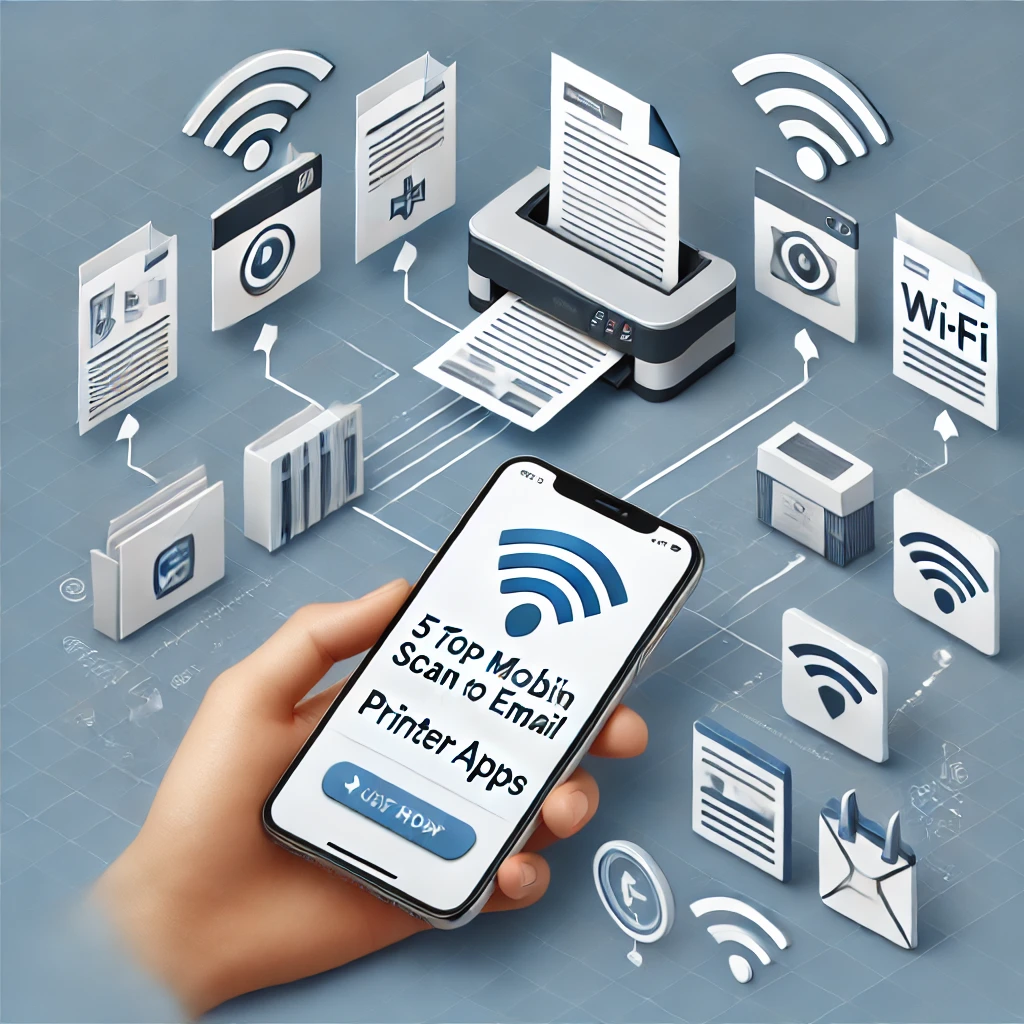
Mobile Device Scanning Capabilities
I’ll be the first to admit it – when I initially discovered I could scan documents with my smartphone, it felt like discovering a superpower.
No more bulky desktop scanners!
I remember frantically trying to submit mortgage paperwork while traveling, desperately searching for a FedEx store, only to realize the solution was literally in my pocket the whole time.
Built-in Smartphone Scanning Features
Most folks don’t realize this, but your smartphone probably already has document scanning capabilities without needing to download a thing!
I discovered this by accident when my daughter needed to submit homework during remote learning.
For iPhone users, you can use the Notes app to scan documents by simply opening Notes, selecting a note or creating a new one, tapping the camera icon, and then tapping the scan documents option.
The camera will automatically detect the document edges and capture it.
Android users aren’t left out either. On Android phones, you can use the “Scan” feature within the Google Drive application.
Just open the app, tap the plus sign, and select “Scan” – Google’s AI will handle the rest, detecting document edges and creating a clean PDF.
What blew my mind was discovering that these built-in options often worked better than some paid apps I’d downloaded!
The automatic edge detection and perspective correction transformed my crooked, hastily-taken photos into professional-looking documents.
How to Locate Your Phone’s Scanner
Finding these hidden gems took me some digging.
On my iPhone, I initially looked in the Camera app until a tech-savvy coworker showed me it was tucked away in Notes.
My sister with her Samsung had a similar “aha!” moment when she found scanning capabilities in her Google Drive app.
For iPhone users:
- Open the Notes app
- Create a new note or open an existing one
- Tap the camera icon
- Select “Scan Documents”
For Android users:
- Open the Google Drive app
- Tap the “+” button in the bottom right
- Select “Scan”
Some newer Android phones even have a dedicated scanner option in their camera app – just look for a “Document” or “Scan” mode in your camera settings!
Alternative Scanning Methods Without Apps
What if you’re in a pinch without dedicated scanner apps?
I’ve been there too! During a power outage when my phone was low on battery, I discovered several workarounds.
The simplest approach is just taking a regular photo of your document. While not ideal, you can later crop and adjust brightness/contrast in your phone’s basic photo editing tools.
I did this for years before learning about proper scanning features!
Another trick I’ve used when I needed to capture multiple pages was to:
- Take photos in good lighting
- Use a dark, contrasting background (like a black folder)
- Hold the camera directly above the document
- Email them to myself and convert to PDF on a computer
Not elegant, but it works in a pinch.
Best Practices for High-Quality Mobile Scans
After hundreds of scanned documents (and plenty of blurry, unreadable mistakes), I’ve learned some crucial tips for getting professional results:
Lighting Matters More Than You Think
For the best quality scans, use even, natural lighting and avoid direct reflections of light sources on glossy paper.
I learned this the hard way when trying to scan my daughter’s glossy certificates – terrible glare made them unreadable until I moved away from the window.
Good lighting makes the difference between a scan that looks professional and one that looks like it was taken in a dungeon.
I’ve found north-facing windows provide perfect, diffused light.
Steady Hands Get Clear Results
When taking a photo to scan the document, hold your hand as steady as possible. Some experts even suggest holding your breath while scanning to get a sharper image.
This might sound extreme, but those micro-movements really do affect quality!
I’ve found propping my elbow on a solid surface helps tremendously – or if possible, use a small tripod or prop your phone against something stable.
Background and Positioning Tips
Use bright, direct lighting and hold your device directly above the document to avoid distorting the scan.
I discovered that placing white documents on a dark surface (like a black desk mat) helps the scanner app better detect edges.
Also, make sure your entire document is within the frame but doesn’t have too much empty space around it.
Getting the right distance took me some practice, but now I can nail it on the first try.
Through trial and error, I’ve found that scanning isn’t just about having the right app – it’s about creating the right conditions.
When I take the time to set up properly, my mobile scans are virtually indistinguishable from those produced by expensive office scanners!
Integration with Email Platforms
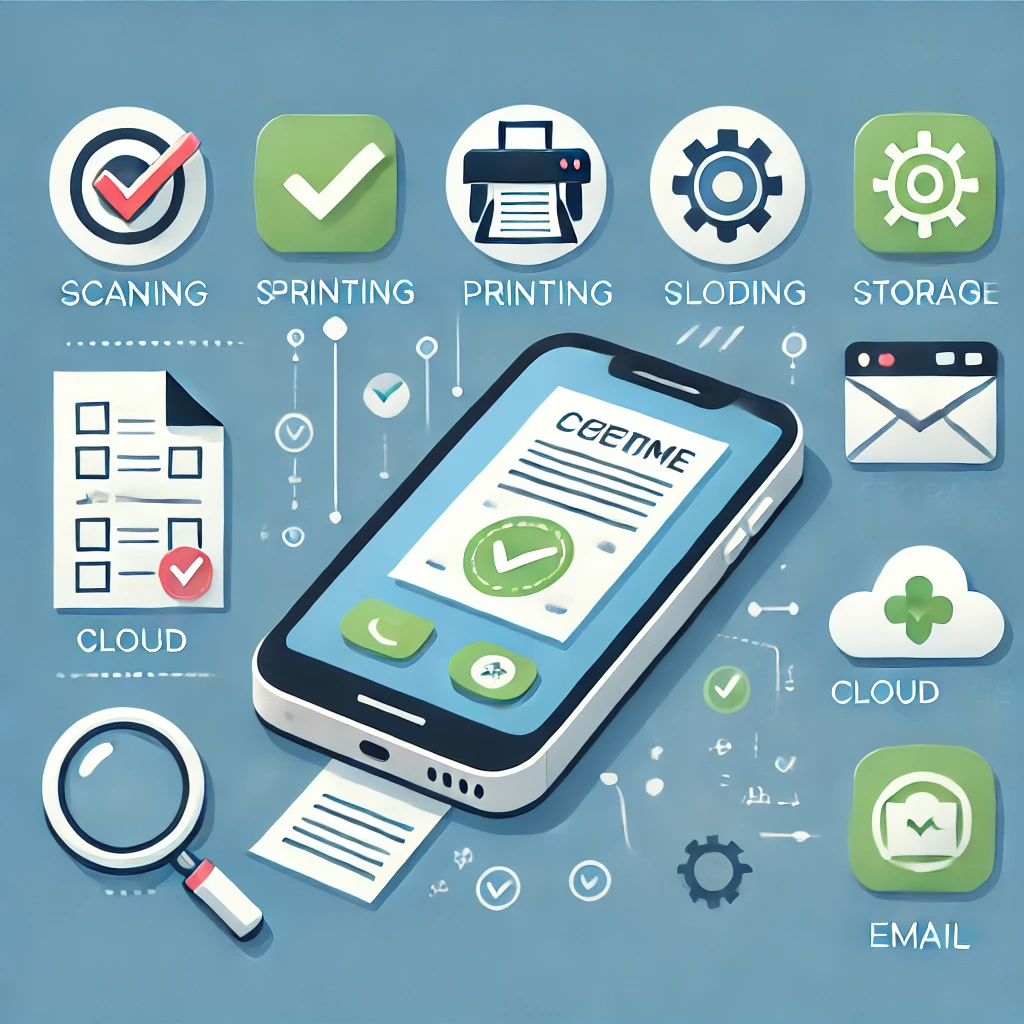
As someone who has accidentally emailed blurry scans to clients at midnight, I’ve learned that the connection between scanning apps and email platforms can make or break your productivity.
My journey from email frustration to workflow zen wasn’t easy, but I’ve picked up some game-changing insights along the way.
Compatibility with Popular Email Services
The marriage between your scanning app and email provider should be seamless, but it’s often complicated by technical quirks.
I remember the panic when I needed to scan and email tax documents from my phone, only to discover my scanning app wouldn’t play nice with my email client.
Gmail is known for working with virtually any device, making it highly compatible with most scanning apps.
When I switched to Gmail as my primary email, integration issues practically disappeared.
The interface is clean, and sending scanned documents became a one-tap process rather than a multi-step ordeal.
Meanwhile, Outlook works well on most platforms except Linux, which could be limiting if you work across multiple operating systems.
However, for Windows users, it offers incredible integration with Microsoft’s ecosystem, making it a powerhouse for business environments.
For the security-conscious (like my friend who works with medical records), ProtonMail offers end-to-end encryption and is designed with privacy as a priority.
This makes it ideal for sending sensitive scanned documents like contracts or medical information.
Which Email Apps Play Best with Scanning Solutions
After experimenting with countless combinations, I’ve found some clear winners:
- Adobe Scan + Gmail: This dynamic duo offers nearly instant uploads and sharing. I scan a document, and within seconds, it’s ready to attach to an email.
- CamScanner + Gmail: Another excellent combination that provides seamless integration. CamScanner’s editing features paired with Gmail’s reliable delivery make for a productive workflow.
- iPhone Notes scanner + Apple Mail: For Apple devotees, this native combination is surprisingly powerful and requires no additional apps.
A colleague once complained that her scanner app created enormous files that bounced back from email servers.
The solution was finding an app that automatically compressed PDFs before sending—a feature now common in premium scanning apps but worth checking for.
Issues with Discontinued Email Platforms
The digital graveyard is filled with once-popular email platforms, and being caught in a discontinuation can wreak havoc on your workflow.
I learned this lesson when Windows Live Mail was discontinued.
Windows Mail and Calendar are being replaced by Outlook by default, prompting many users to seek alternatives that better match their needs.
This transition has created headaches for many who relied on Windows Mail’s simple interface and scanning integration.
When hunting for alternatives to discontinued platforms, consider these options:
- Mozilla Thunderbird: An open-source email client known for its flexibility and easy customization options, supporting offline email encryption and management.
- eM Client: Offers a simple interface that makes email management convenient, with support for Google and Facebook messaging services.
- Mailbird: A powerful email client that lets you connect and manage all POP/IMAP accounts from one unified inbox, with excellent scanning integration.
I made the mistake of ignoring discontinuation warnings until the last minute.
Don’t be like me—when you receive notices about platform changes, start testing alternatives immediately to avoid workflow disruptions.
Streamlining the Scan-to-Email Workflow
The real productivity magic happens when you optimize your entire scan-to-email process.
I used to waste precious minutes waiting for scans to process, files to attach, and emails to send. No more!
Implementing user authentication helps restrict access to scanning devices, ensuring only authorized personnel can send documents via email.
This became crucial when my team started working remotely and sharing mobile scanning capabilities.
Here are my tried-and-true workflow optimization tips:
- Create email templates with standard language for different scan types (invoices, contracts, receipts)
- Set up email signature templates that include links to your cloud storage for larger scanned files
- Use folder automation rules to sort incoming scanned documents by type or sender
- Ensure mobile responsiveness since most people now check emails on their devices
My biggest productivity breakthrough came when I started using automation tools to classify scanned documents and route them to specific email folders.
What once took 20+ clicks now happens automatically.
Automation Makes Everything Better
Today’s mobile scanning technologies integrate with cloud systems, allowing employees to scan from mobile devices and search their scanned content saved to a cloud or server.
This has revolutionized how my team handles document management.
For business users, I highly recommend exploring scan-to-workflow solutions that can:
- Automatically OCR scanned documents for searchability
- Tag and categorize scans based on content
- Route scans to appropriate team members based on document type
- Pre-populate email fields based on document content
The days of “scan, save, find file, attach, compose email” are long gone. Now it’s just “scan and confirm” while automation handles the rest.
This streamlined approach has saved me countless hours and eliminated the embarrassment of sending the wrong scan to the wrong person—something I once did with a client’s confidential information (thankfully caught before disaster).
By carefully selecting compatible email platforms and optimizing your scan-to-email workflow, you’ll transform what was once a tedious chore into a seamless, almost enjoyable process.
Now excuse me while I scan and email this article to my technophobic relatives who still use a fax machine!
Advanced Scanning Features and Considerations
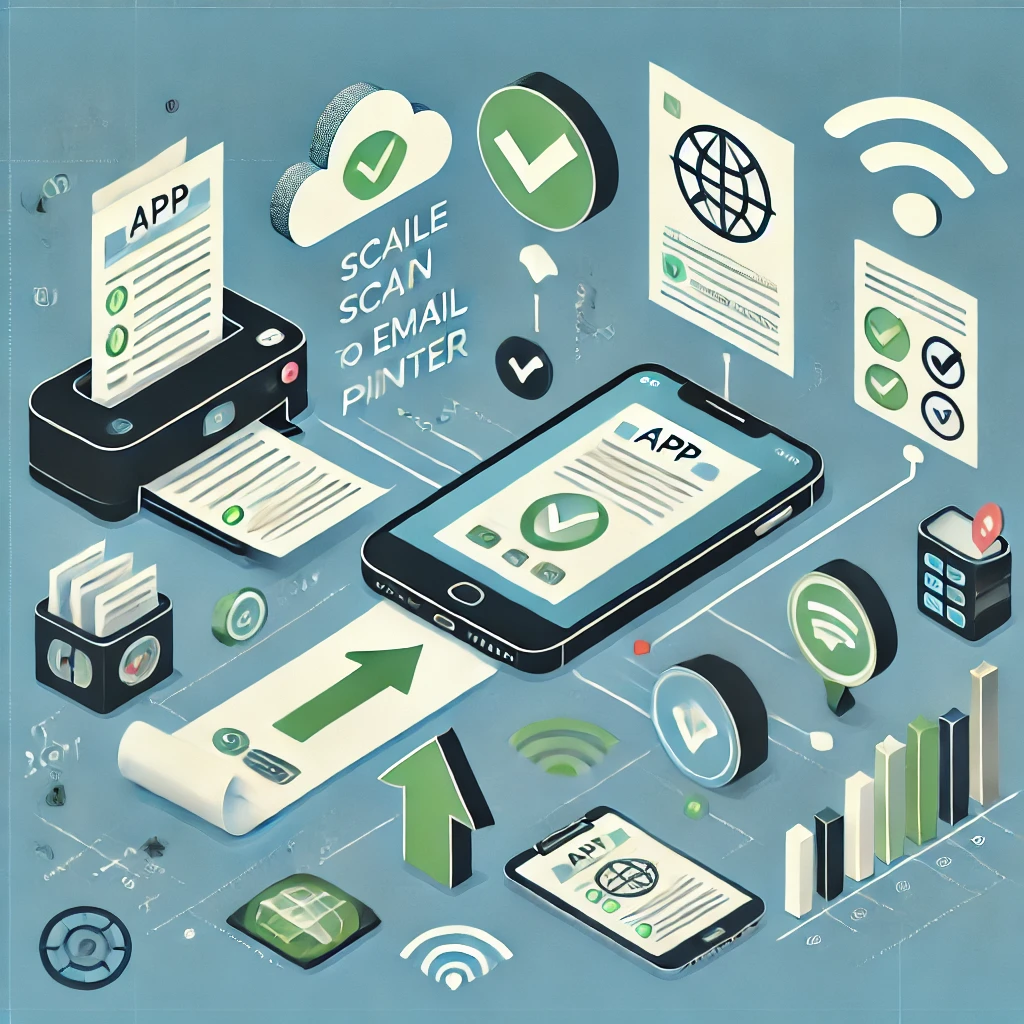
After numerous scanning mishaps that resulted in lost documents and security breaches, I’ve learned that mobile scanning is about more than just pointing a camera at a piece of paper.
The advanced features of today’s scanning apps can mean the difference between professional-quality digital documents and indecipherable images that compromise your data.
Let me share what I’ve discovered about making your mobile scanning experience both secure and productive.
Document Security and Malware Protection
When I accidentally sent an unprotected tax document scan to a client, I learned the hard way about the importance of document security.
Digital documents are vulnerable to various threats that paper documents aren’t.
Mobile scanning apps can now include security scanners that detect threats before they harm your data and prevent you from installing malicious apps.
Some premium apps actively scan for vulnerabilities in your documents, much like antivirus software for your computer.
For those handling sensitive information, consider these security features when choosing a scanning app:
- Encryption options: Look for apps that offer end-to-end encryption for your scanned documents
- Password protection: The ability to password-protect individual scans or your entire scanning library
- Secure deletion: Features that completely remove sensitive scans when no longer needed
- Malware detection: Many top security apps like Bitdefender Mobile Security include app scanning that can trap malware and detect phishing attempts
I now use HIPAA-compliant scanning apps with biometric authentication and local encryption when handling sensitive client information.
These apps ensure scanned documents remain inaccessible from the camera roll or outside the app itself.
Virus Protection for Mobile Documents
Samsung devices offer built-in security features through Samsung Knox that provide protection against malware and malicious threats.
Other device manufacturers offer similar protections, but you may need to supplement with dedicated scanning security.
For maximum protection, I recommend:
- Keeping your scanning apps updated to the latest versions
- Only downloading scanning apps from official app stores
- Being cautious about sharing scans through unsecured channels
- Using apps that scan attachments for potential threats
Most people don’t realize that PDFs can contain malicious code.
When I receive document scans from others, I now use online file virus scanners to check suspicious files before opening them.
Cloud Storage Integration
The convenience of having my scanned documents available across all my devices revolutionized my workflow.
Most modern scanning apps offer seamless integration with popular cloud storage services.
Many scanning apps allow you to upload scanned documents to cloud platforms like Dropbox, Evernote, Google Drive, OneDrive, and more.
This integration means your scans are safely backed up and accessible from anywhere.
When evaluating cloud storage options for your scanning needs, consider:
- Storage capacity: Google One offers 15GB of free storage shared across Gmail, Google Drive, and Google Photos, while Microsoft OneDrive provides 5GB of separate cloud storage
- Integration depth: Some apps merely allow uploads, while others provide real-time syncing
- Cross-platform availability: Ensure your scans are available on all your devices
- Search capabilities: Look for cloud solutions with OCR that make your scans searchable
Adobe’s scanning solutions offer particularly robust cloud integration.
Adobe Scan integrates with Adobe cloud storage, allowing you to store and access files with free storage and sync files across desktop, mobile, and web.
Managing Documents Across Services
I’ve found that the best approach is often to use multiple cloud services strategically.
I store routine documents in Google Drive for easy sharing, keep sensitive client materials in more secure specialty services, and maintain personal archives in my Adobe cloud account.
For integration between scanning services, Adobe Acrobat for Google Drive provides essential PDF and e-signature tools that integrate seamlessly with Google Drive, creating a powerful combination for document management.
File Management and Document Retention Policies
When I discovered my scanning app had automatically deleted years of important business receipts, I learned the critical importance of document retention policies.
Professional document management isn’t just about creating digital copies—it’s about managing their entire lifecycle.
Effective document management requires organizing files by category and adopting consistent naming conventions to ensure easy retrieval and application of retention policies.
Without this structure, your digital documents quickly become as disorganized as paper files.
To establish proper document retention practices:
- Categorize documents: Group scans by type (financial, legal, personal)
- Establish timeframes: Different documents require different retention periods based on administrative value, historical value, and legal requirements
- Create a schedule: Set up automated reminders for document review
- Implement secure deletion: Have a protocol for properly destroying digital documents
Modern scanning apps can automate much of this.
Business rules can ensure retention rules are assigned when documents are scanned, with automation managing retention and purging according to different requirements.
Compliance Considerations
For businesses, document retention isn’t optional—it’s often legally required. Industries like healthcare must adhere to specific regulations such as HIPAA, which requires patient data retention for at least six years.
When scanning documents for business purposes, I always make sure to:
- Research industry-specific retention requirements
- Document my retention policies in writing
- Apply consistent retention tags at the time of scanning
- Implement a secure destruction protocol for expired documents
- Regularly audit my document library for compliance
Printer Hardware Recommendations for Optimal Scanning
My journey to find the perfect scanning setup was filled with frustrating hardware incompatibilities.
Through trial and error, I’ve discovered that the right hardware makes all the difference in your scanning experience.
For Android devices, it’s best to opt for the newest, name-brand tablet your budget allows, as they last longer and have fewer printer compatibility issues.
Similarly, while iPads work well, they can be expensive—consider an iPad mini with lower storage and Wi-Fi only to save money.
For scanning hardware, I recommend:
- Multi-function printers: Look for devices with dedicated scanning capabilities
- Wireless connectivity: Most modern printers and scanners are designed to work with smartphones and tablets through dedicated apps like HP Smart, Canon PRINT, Epson iPrint, and Brother iPrint&Scan
- Resolution: Choose hardware that supports at least 300 DPI scanning
- Document feeders: Automatic document feeders save tremendous time when scanning multiple pages
If you’re serious about mobile scanning, be aware that mobile scanning often requires scanning each page individually, which becomes inefficient at scale.
For larger scanning jobs, I still rely on dedicated scanning hardware.
Mobile-Compatible Printing Solutions
For a complete mobile document solution, choose printers designed for mobile integration:
- Brand compatibility: Epson and other manufacturers offer mobile printing and scanning solutions that work wirelessly with smartphones, tablets, and laptops
- Dedicated apps: Use the manufacturer’s official app for the most reliable connection
- Troubleshooting tools: Tools like HP Print and Scan Doctor can help resolve connectivity issues between your devices and printers
- Network setup: Ensure your printer is on the same network as your mobile device for seamless connectivity
I’ve found that printer-scanner combos from major brands like HP, Canon, Brother, and Epson offer the most reliable mobile scanning experience when paired with their dedicated apps.
The small investment in quality hardware pays dividends in reliability and scan quality.
By attending to these advanced features and considerations, you’ll transform your mobile scanning experience from merely convenient to truly professional-grade.
Remember that document security, cloud integration, retention policies, and hardware compatibility work together to create a scanning workflow that protects your information while making it instantly accessible when needed.n from my mistakes, people!
s to streamline your work, boost your productivity, and maybe save a tree or two along the way.
Conclusion:
Throughout this comprehensive exploration of scan to email printer apps, we’ve covered everything from the leading applications in the market to the nuanced considerations of security, cloud storage, and document retention.
What began as simple technology has evolved into sophisticated ecosystems that can dramatically streamline your personal and professional document management.
As we move further into 2025, the line between mobile scanning apps and traditional scanning hardware continues to blur.
The convenience of being able to scan, edit, save, and email documents from anywhere has fundamentally changed how we handle information.
Whether you’re a teacher organizing student assignments, a professional managing contracts, or simply someone trying to reduce paper clutter, there’s a scanning solution perfectly tailored to your needs.
Remember that the best scanning app is the one that fits seamlessly into your workflow.
Consider your specific requirements—frequency of use, security needs, budget constraints, and integration preferences—before committing to a solution. And don’t be afraid to experiment!
Many apps offer free trials or basic tiers that allow you to test their features before upgrading.
Ready to transform your document workflow?
Start by exploring the built-in scanning capabilities of your device, then graduate to a dedicated scanning app that matches your specific needs.
Your future self will thank you for the hours saved and the headaches avoided. Happy scanning!

Recent Posts
Monday.com Review 2026: Is It Still the Best Work OS?
I tested Monday.com against ClickUp, Asana, and Wr...
Updated July 27, 2026
AI Writing Software for Blogging in 2026: Best Tools + How to Stay AI-Search Vis...
The best AI writing software for blogging in 2026 ...
Updated July 20, 2026
HubSpot Review 2026: Is It Worth the Cost?
I tested HubSpot’s free CRM, Starter, and Pr...
Updated July 20, 2026
Teamwork.com Review 2026: Is It the Best PM Tool for Client Work?
I tested Teamwork.com for agency and client projec...
Updated May 29, 2026
Wrike Review 2026: Is It Worth the Cost?
I tested Wrike in real enterprise workflows. Here&...
Updated May 29, 2026
Asana Review 2026: Is It Worth It? (Honest, In-Depth Analysis)
I tested Asana across real team workflows. Here...
Updated May 29, 2026
Newsletter
Don't miss a thing!
Sign up to receive daily news