
 Tracy Jackson15 yrs in online marketing
The Best Scan to Email Printers for Small Businesses in 2025
Table of Contents
Finding the best scan to email printer for your small business can transform your productivity overnight!
When I first needed to upgrade my marketing agency’s printer, I was overwhelmed by the options.
After 12 years in business and cycling through numerous printers, I’ve learned that choosing the best scan to email printer isn’t about the cheapest option—it’s about finding the perfect fit for your specific needs.
Companies waste an average of $15,000 annually on inefficient document processes!
This guide will help you navigate the confusing world of business printers to find the perfect scan-to-email solution that balances quality, efficiency, and cost-effectiveness in 2025.
Disclaimer:
If you buy something using the links in this article, I may receive a commission at no extra cost to you.
Please know that I only promote stuff that I use and trust for the sake of my readers and the reputation of this site.
Choosing the Right Printer Technology for Your Business
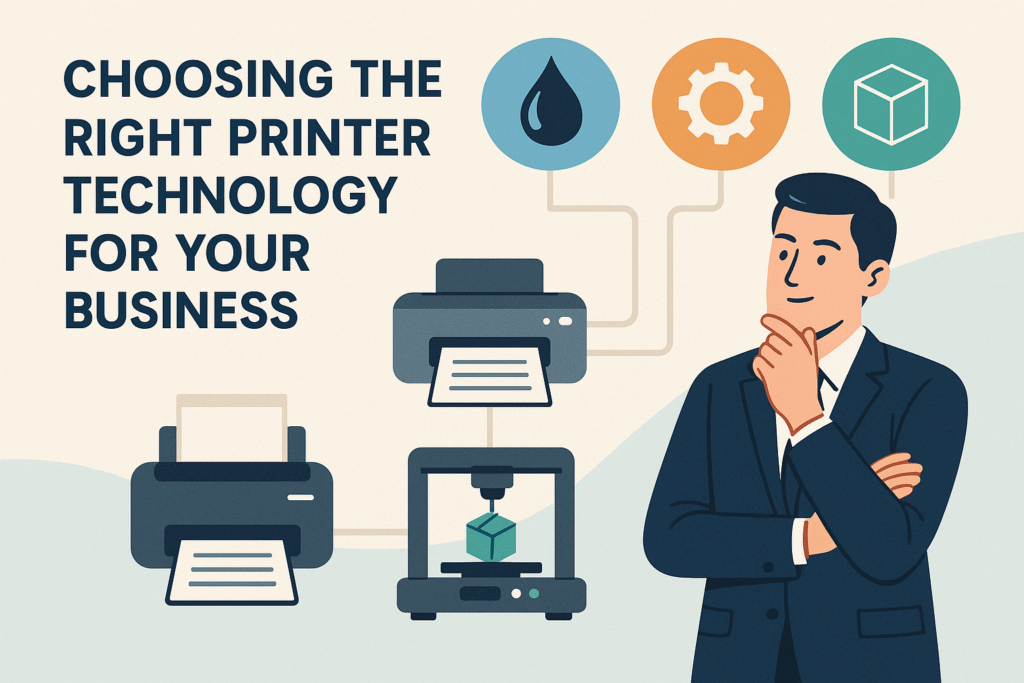
When I first started my business, I went with an inkjet printer simply because it was cheaper upfront.
Big mistake!
Within three months, I was spending a fortune on ink cartridges and dealing with constant paper jams during important client deadlines.
Inkjet vs. Laser: Pros and Cons for Small Business Needs
Inkjet printers work by spraying tiny droplets of ink onto paper.
They’re great for printing photos and color documents with rich, vibrant colors. But they come with some downsides that I learned the hard way.
For my business, switching to a laser printer was a game-changer.
Laser printers use toner powder and heat to fuse the image onto paper.
They’re typically faster and can handle higher volumes of printing—something I desperately needed as our client base grew.
Here’s what I’ve found after trying both types:
- Inkjet Pros: Lower upfront cost (usually $100-300), excellent for high-quality photo printing, and can print on various media types including glossy paper
- Inkjet Cons: Higher cost per page (often 5-10 cents per page), slower print speeds, ink can dry up if used infrequently
- Laser Pros: Faster printing (20+ pages per minute), lower cost per page (2-4 cents typically), more durable prints that don’t smudge
- Laser Cons: Higher initial investment (starting around $200-500 for basic models), typically bulkier, not as good for photo-quality images
The turning point came when I calculated our monthly ink costs.
We were spending nearly $85 per month on ink! Our laser printer toner might cost $80, but it lasts about six times longer.
The math just made sense.
Understanding Print Quality Requirements for Professional Documents
Nothing’s worse than sending a proposal to a potential client only to hear them comment on how “interesting” your pixelated logo looks.
Been there, done that, learned my lesson.
Print quality is measured in DPI (dots per inch), and the requirements vary dramatically depending on what you’re printing.
For most business documents with text and simple graphics, 600 DPI is perfectly adequate.
But if you’re in a visual field like I am, you might need higher resolution capabilities.
After years of experimenting, I’ve found that:
- Text documents: A basic laser printer with 600 DPI works great
- Business presentations: 1200 DPI provides sharper graphics
- Marketing materials: Consider a color laser with 2400 DPI or a high-quality inkjet
- Photography or detailed design work: You might need a specialized inkjet with 4800+ DPI
For my agency, we ended up with a hybrid approach.
We have a workhorse laser printer for everyday documents and contracts, and a higher-end inkjet for when clients need color proofs or presentation materials.
This combo has saved us thousands compared to outsourcing our printing needs.
Top Scan to Email Printer Models for Small Businesses
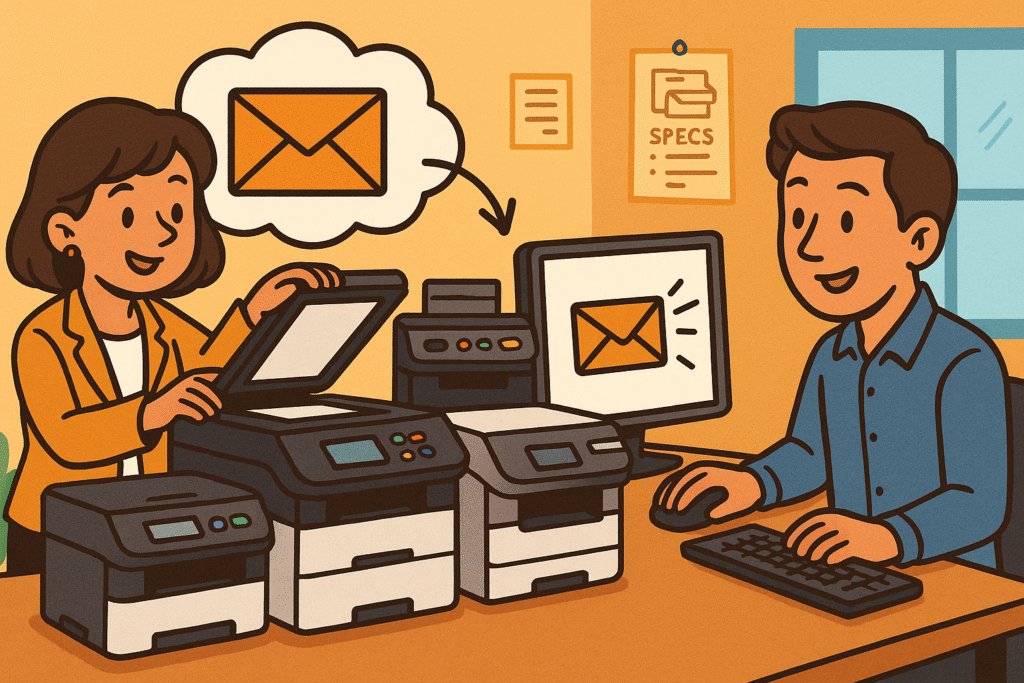
When I first needed to upgrade our office printer to something with solid scan-to-email capabilities, I was completely overwhelmed.
There were just so many options!
After three different purchases (and returns) over the years, I’ve finally figured out what actually matters when choosing a scan-to-email printer for a small business.
Best Budget-Friendly Options with Quality Scanning Features
Finding an affordable printer that doesn’t skimp on scanning quality was my personal mission for months.
After testing several models (and returning two), I’ve found a few gems that won’t break the bank but still deliver where it counts.
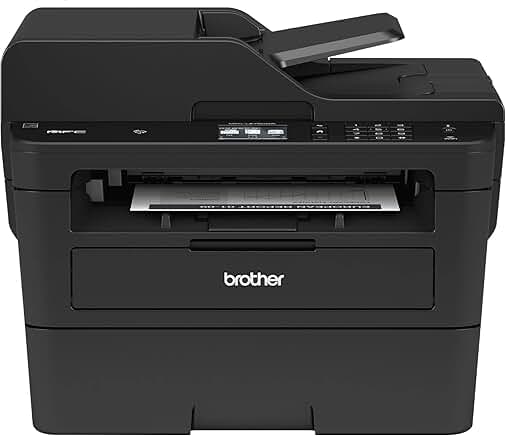
The Brother MFC-L2750DW has been my go-to recommendation for friends starting small businesses.
I picked one up on sale for about $279, and it’s been surprisingly capable.
The automatic document feeder handles up to 50 pages, which means I can scan entire contracts without babysitting the machine.
What I’ve found most important in budget-friendly models:
- Automatic document feeder (ADF): This is non-negotiable if you’re scanning more than a couple pages at a time
- Scan resolution of at least 600 dpi: Anything less and those tiny contract details might get lost
- Simple one-touch scanning: Some cheaper models require navigating complicated menus for each scan
- Direct email integration: The best affordable models connect directly to your email service without needing a computer as middleman
For under $300, you’ll likely need to compromise somewhere. In my experience, speed is usually the first thing to go in budget models.
My Brother scanner isn’t lightning-fast at about 35 pages per minute, but for our team of six, it’s plenty quick enough for our daily needs.
Premium Models for High-Volume Small Business Operations
Once my business grew to 12 employees, our budget scanner just couldn’t keep up.
Papers were getting jammed, the ADF started acting finicky, and our weekly scanning needs had tripled.
It was time to invest in something more robust.
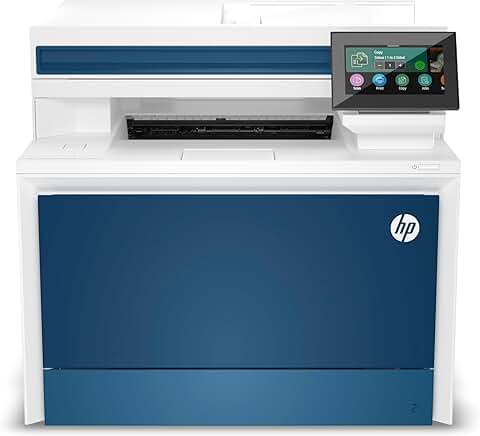
After a lot of research (and one expensive mistake with a model that shall remain nameless), we landed on the HP Color LaserJet Pro MFP M301fdw.
At around $629, it wasn’t cheap, but it’s been worth every penny for our growing operation.
The difference in high-volume models is immediately obvious:
- Faster scanning speeds: Our premium model handles 35+ color pages per minute
- Larger document feeders: The 50-100 page capacity means large document batches are no problem
- Better paper handling: Fewer jams and misfeeds, even with different paper weights
- Advanced workflow options: Our model lets us create custom scan profiles for different document types
- Enhanced security features: Password-protected scanning and encrypted email—something our lawyer clients really appreciate
One thing I didn’t anticipate was how much time we’d save with the preset scanning workflows.
We created custom buttons for common tasks like “Scan to Client Folder” and “Scan to QuickBooks,” which has probably saved hundreds of hours of employee time over the past couple years.
Essential Features for Business Scan to Email Functionality
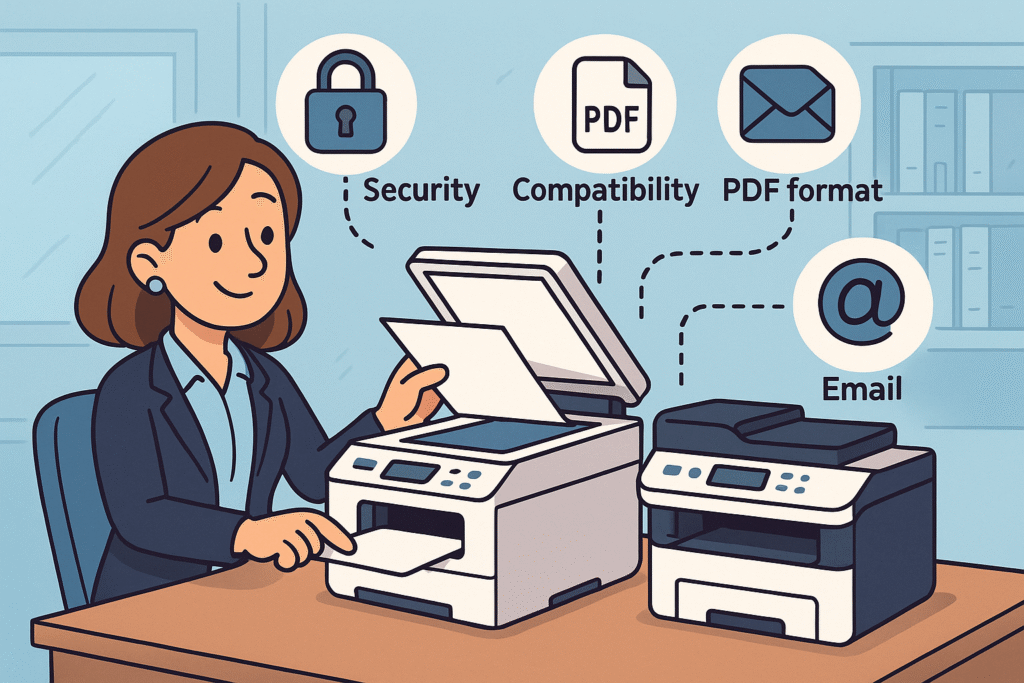
The day I realized how much time we were wasting with our old scanning system was pretty eye-opening.
My assistant was literally standing at the scanner, scanning documents one by one, walking back to her computer, finding the file, renaming it, and then attaching it to an email.
For each. Single. Document. We were probably losing 10 hours a week to this ridiculous process!
Connectivity Options and Network Integration Capabilities
When I first started looking at scan-to-email features, I assumed all modern printers would connect easily to our network.
Boy, was I wrong.
Our first “network” printer required a direct connection to a computer that needed to be powered on at all times.
Talk about a bottleneck!
Modern business printers should offer multiple connectivity options.
After upgrading to a truly network-capable model, my team could scan from anywhere in the office directly to their email – no middle-man computer required.
Here are the connectivity features that have made the biggest difference in our workflow:
- Ethernet connectivity: More stable than WiFi for office environments with heavy document traffic
- WiFi Direct: Allows mobile scanning without connecting to your main network (great for visitors or consultants)
- Built-in email server support: The printer can connect directly to your email server without computer mediation
- LDAP directory integration: This lets the printer access your company email directory – a huge time-saver
- Mobile app support: Being able to control scanning jobs from my phone has been surprisingly useful
The game-changer for us was finding a printer with SMTP authentication that could connect directly to our Google Workspace email.
No more scanning to a folder, then attaching to an email – the document goes straight from scanner to recipient’s inbox in one step.
Security Features for Protecting Sensitive Business Documents
I never gave much thought to scanner security until one of our confidential client proposals somehow ended up in the wrong inbox.
That was a wake-up call I never want to experience again!
Scan-to-email security isn’t just a nice-to-have feature—it’s essential for any business handling sensitive information.
Critical security features you shouldn’t overlook:
- User authentication: Requiring badge scan or password entry before accessing scan functions
- Encrypted PDF output: Ensuring the document can’t be intercepted during transmission
- Secure email protocols: Support for TLS/SSL email transmission
- Audit trails: Logs that show who scanned what and where it was sent
- Automatic file deletion: Removing scanned files from printer memory after transmission
Cost Management and Efficiency

The day our bookkeeper marched into my office with a folder full of receipts was the day I realized we had a serious printer cost problem. “We spent HOW MUCH on ink last quarter?!” I remember asking in disbelief. The answer was over $1,200 for our small 8-person office.
That’s when I knew something had to change.
Printers with the Most Economical Ink/Toner Options
My first printer for the business was one of those dirt-cheap inkjet models that practically give away at office supply stores.
What a rookie mistake!
Those things are like buying a cheap razor with expensive blade refills.
The printer was $89, but each set of ink cartridges cost $75 and lasted about three weeks in our office.
After much research and some painful trial and error, I’ve found some approaches that have dramatically reduced our printing costs:
- Tank-based inkjet systems: Printers like the Epson EcoTank and Canon MegaTank cost more upfront ($399+) but include enough ink to print thousands of pages. My EcoTank went 14 months before needing a refill!
- High-yield toner cartridges: For our laser printer, switching to high-yield cartridges cut our per-page cost from 4 cents to about 1.8 cents
- Third-party cartridges: After warranty expiration, we saved about 40% using reputable third-party toner (though be careful—some can damage printers)
- Toner-subscription services: HP’s Instant Ink and similar programs can save 10-30% for offices with predictable print volumes
- Monochrome for everyday use: Keeping a black-and-white laser for daily documents and a color printer just for marketing materials cut our color printing costs by 70%
The real game-changer was switching to a Brother laser printer with super high-yield toner cartridges.
The toner costs about $85 but lasts for around 4,500 pages—compare that to our old inkjet that needed $75 in ink after just 500 pages! The math speaks for itself.
Optimizing Your Small Business Printer Setup
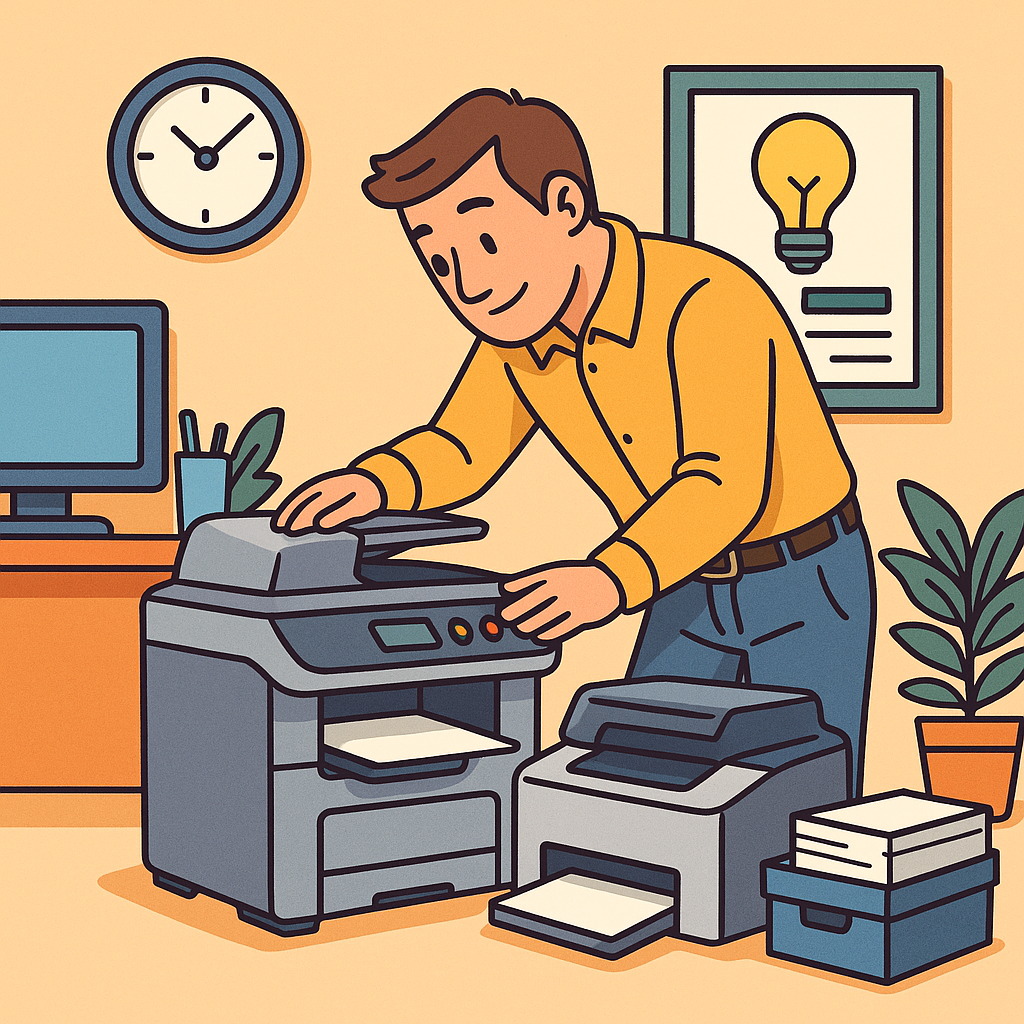
Let me tell you about the day I thought our office printer was possessed.
Documents were printing with random lines across them, scans were coming out crooked, and the thing made noises that sounded like it was planning a rebellion.
After three frustrating hours on support calls, I discovered the problem—we had never performed any maintenance on it. Not once in three years!
Key Factors to Consider When Selecting a Business Printer
My first business printer purchase was based entirely on price and whatever features sounded cool in the description.
Talk about a rookie mistake!
I ended up with a fancy printer that could do everything except what we actually needed—reliable, fast, double-sided scanning.
After that expensive lesson, I developed a much more methodical approach.
Before you even look at specific models, take some time to analyze your actual printing needs:
- Volume assessment: Track how many pages you print/scan monthly—this is crucial for selecting the right duty cycle
- Document types: Do you mostly print text, graphics, photos, or marketing materials? This affects technology choice
- Paper handling requirements: Consider paper sizes, weights, and special media you regularly use
- Physical space limitations: Measure your available space including clearance for paper trays and maintenance access
- Growth projection: Estimate how your needs might change over the next 2-3 years
The biggest revelation for me was understanding duty cycle ratings.
Our first printer had a recommended monthly duty cycle of 1,500 pages, but we were printing about 2,800.
No wonder it broke down constantly!
Now I always choose printers rated for at least double our actual volume to ensure longevity.
Maintenance Best Practices to Extend Printer Lifespan
Remember my possessed printer story?
That taught me that maintenance isn’t optional—it’s essential. After that disaster, I became almost religious about printer maintenance, and it’s paid off.
Our current printer is four years old and still works like new, despite heavy daily use.
Here’s my maintenance routine that has kept our printer running smoothly:
- Weekly cleaning: Wiping down the scanner glass and document feeder with a microfiber cloth (fingerprints and dust severely impact scan quality)
- Monthly paper path cleaning: Running cleaning sheets through to remove paper dust and toner residue
- Quarterly deep clean: Carefully cleaning internal components following the manufacturer’s guidelines
- Regular firmware updates: Checking for and installing updates that often fix bugs and improve performance
- Toner/ink management: Never letting cartridges get completely empty before replacing them
Document Management Integration
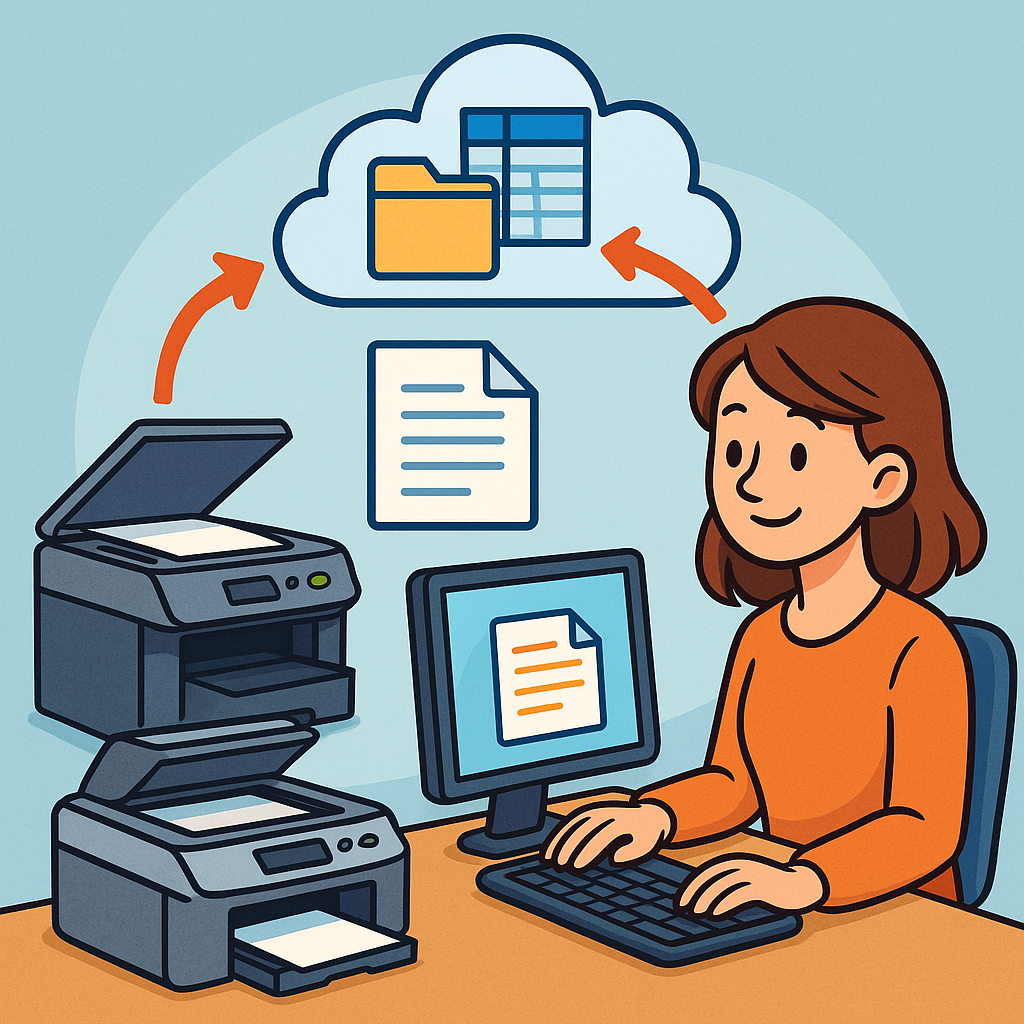
Once you’ve got your scan-to-email printer set up, the next step for many growing businesses is integrating it with a document management system.
According to 5 Best Practices for Scanning and Managing Business Documents, a good document management strategy significantly improves workflow and reduces paper handling costs.
The right document management integration can help you:
- Automate document filing: Send scanned documents directly to appropriate digital folders
- Enable searchable documents: Use OCR (Optical Character Recognition) to make scanned text searchable
- Set retention policies: Automatically manage document lifecycles to maintain compliance
- Improve collaboration: Allow team members to access, comment on, and revise documents easily
- Enhance security: Apply permissions and encryption at the document level
For small businesses just starting their digital transformation journey, even simple cloud storage integration with services like Document Digitization Workflow Best Practices can dramatically improve efficiency.
Conclusion
After all my printer mishaps and triumphs, I’ve become the unofficial “printer guru” among my business friends.
The right scan-to-email printer isn’t just an office appliance—it’s a productivity powerhouse that can save your business thousands in both direct costs and recovered staff time.
Don’t make the same mistakes I did by focusing solely on the upfront price or flashy features you’ll never use.
Instead, take the time to assess your actual needs, prioritize the features that will make the biggest difference to your workflows, and calculate the true cost of ownership over the printer’s lifetime.
Whether you choose a budget-friendly workhorse like the Brother MFC series or invest in a premium option like HP’s Color LaserJet Pro line, the key is finding the right balance of features, quality, and cost-efficiency for your specific business needs.
And remember—even the best printer is only as good as its setup and maintenance.
Take the time to configure those scan-to-email workflows properly and keep up with regular maintenance, and your printer investment will pay dividends for years to come.
Ready to transform your office efficiency with the right scan-to-email printer?
Start by tracking your current document workflows and identifying your pain points—then use this guide to find the perfect solution for your small business.
Your team (and your bottom line) will thank you!

Recent Posts
Monday.com Review 2026: Is It Still the Best Work OS?
I tested Monday.com against ClickUp, Asana, and Wr...
Updated July 27, 2026
AI Writing Software for Blogging in 2026: Best Tools + How to Stay AI-Search Vis...
The best AI writing software for blogging in 2026 ...
Updated July 20, 2026
HubSpot Review 2026: Is It Worth the Cost?
I tested HubSpot’s free CRM, Starter, and Pr...
Updated July 20, 2026
Teamwork.com Review 2026: Is It the Best PM Tool for Client Work?
I tested Teamwork.com for agency and client projec...
Updated May 29, 2026
Wrike Review 2026: Is It Worth the Cost?
I tested Wrike in real enterprise workflows. Here&...
Updated May 29, 2026
Asana Review 2026: Is It Worth It? (Honest, In-Depth Analysis)
I tested Asana across real team workflows. Here...
Updated May 29, 2026
Newsletter
Don't miss a thing!
Sign up to receive daily news