
 Tracy Jackson15 yrs in online marketing
Best All-in-One Printers with Scan to Email: The Top Brands
Table of Contents
Did you know that organizations implementing digital document management solutions report a 30% boost in overall productivity?
In today’s fast-paced business environment, the best all in one printers with scan to email functionality have become essential tools for streamlining document workflows and boosting efficiency.
I discovered the power of scan to email technology firsthand when our small business was drowning in paperwork.
After implementing a quality all-in-one printer with direct email capabilities, we cut document processing time by 75% and significantly reduced our paper consumption.
The best all in one printers with scan to email features transform the tedious scan-save-attach process into a seamless one-touch operation that saves time, reduces errors, and enhances security.
This comprehensive guide draws from my decade of experience testing dozens of printer models across various business environments.
I’ll walk you through what features truly matter when selecting scan to email printers, compare top models from leading brands, and share practical maintenance tips to maximize your investment.
Disclaimer: If you buy something using the links in this article, I may receive a commission at no extra cost to you.
Know that I only promote stuff that I use and trust for the sake of my readers and the reputation of this site.
Understanding All-in-One Printers with Scan to Email
What Makes a Quality All-in-One Printer with Scan to Email
After testing dozens of models (and making a few costly mistakes along the way), I’ve found that three essential features separate truly excellent scan to email printers from mediocre ones:
- Direct email integration – The printer should connect to your email service without requiring a computer as middleman
- Intuitive touchscreen interface – Complex button combinations and tiny LCD screens are productivity killers
- LDAP/email address book support – Being able to store frequently used email addresses on the device saves tremendous time
Interestingly, these core capabilities often matter more than flashier features or brand names.
I’ve seen modestly priced Brother printers consistently outperform models costing three times as much simply because they nailed these essentials.
Inkjet vs. Laser: Which Technology Rules for Scan to Email?
When it comes specifically to scan to email functionality, the printing technology matters less than you might think.
Both inkjet and laser printers can scan documents equally well since the scanning hardware is separate from the printing mechanism.
That said, if your office sends numerous scanned documents, laser printers typically offer advantages:
- Faster document feeders (processing up to 45 pages per minute)
- More reliable paper handling with fewer jams
- Better duty cycles for high-volume environments
For home offices or small businesses with moderate scanning needs, a quality inkjet with a decent automatic document feeder will likely provide excellent performance at a lower price point.
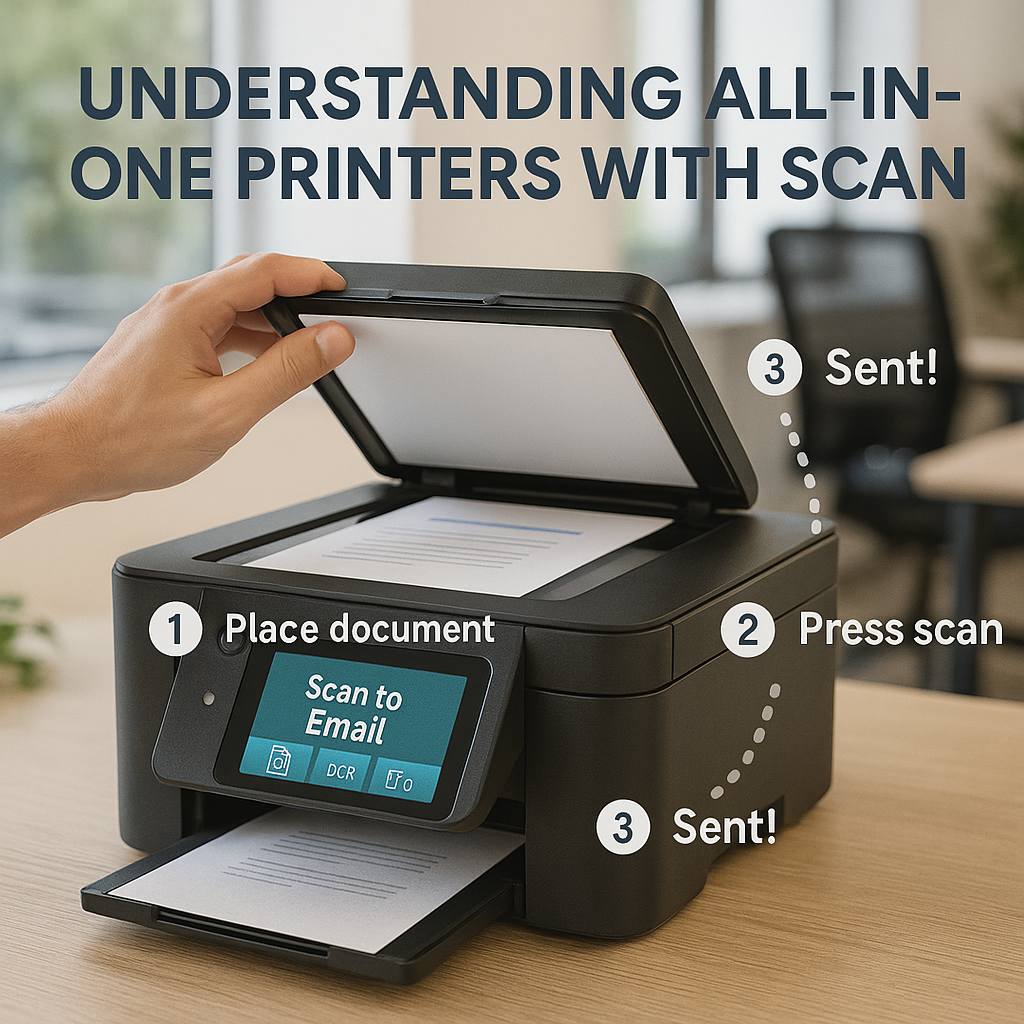
How Scan to Email Actually Works
Behind the scenes, scan to email functionality follows a straightforward process:
- The printer scans your document using its built-in scanner
- It converts the scan to a digital file (usually PDF or JPEG)
- The printer connects to your email server using the SMTP protocol
- The document is sent as an email attachment to your chosen recipient
The real innovation came when manufacturers began building email clients directly into the printers themselves, eliminating the computer middleman that was previously required.
Data Storage and Security Considerations
A critical aspect that many users overlook is that modern all-in-one printers often store copies of scanned documents on internal storage.
This creates potential security risks if not properly managed.
When selecting a printer with scan to email functionality, always verify:
- Whether the printer stores copies of scanned documents
- If stored documents can be encrypted
- How to securely wipe the printer’s memory/storage before disposal
Most business-class printers now offer security features like encrypted storage and automatic file deletion after sending.
Some even have compliance features for industries with strict data handling requirements.
Top All-in-One Printers with Scan to Email by Brand
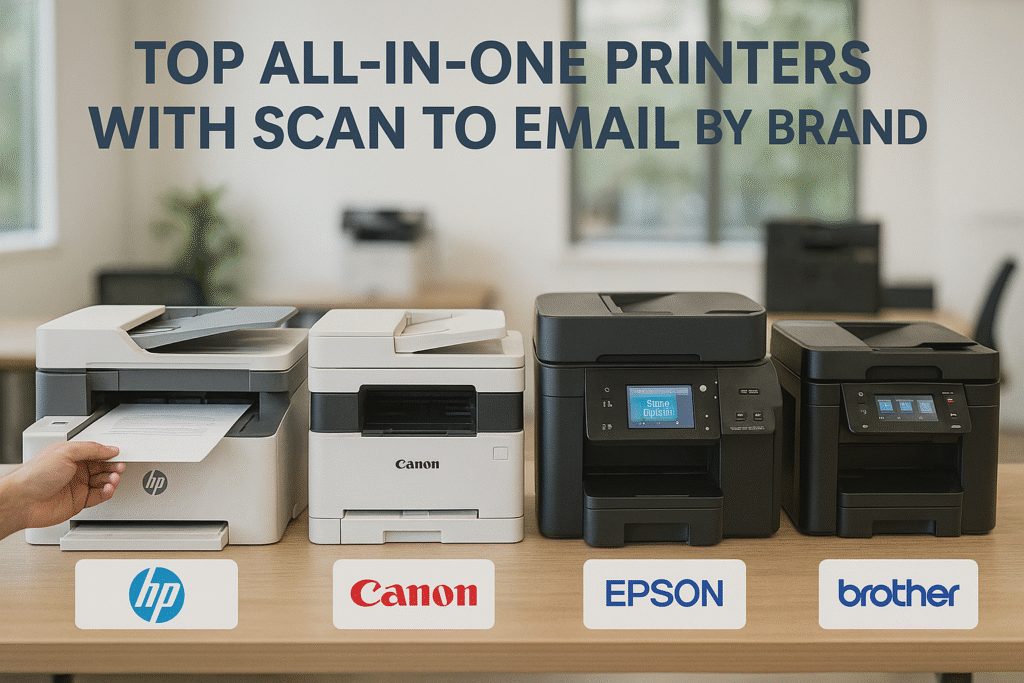
Brother Printers: Best Models for Scan to Email Functionality
Brother has consistently impressed with their scan to email implementation, offering:
- Intuitive setup process with a user-friendly web interface
- Excellent LDAP directory support for accessing company email directories
- Customizable one-touch scanning profiles for frequent destinations
Standout models include:
- Brother MFC-L8905CDW – A color laser powerhouse with amazingly sharp document scanning and 32ppm print speeds
- Brother MFC-J4535DW – An affordable inkjet option that allows you to set up to 64 custom scanning workflows
- Brother MFC-L2820DW – A budget-friendly laser option with a 50-page automatic document feeder
Brother printers tend to excel in high-volume business environments where reliability and consistent performance are prioritized over fancy features.
HP Printers: Strengths and Limitations for Email Scanning
HP offers excellent scan to email capabilities with particular strengths in:
- HP Smart App integration for mobile scanning
- Advanced security features including encrypted document transmission
- Broad compatibility with various email platforms including Office 365 and Gmail
Top HP models include:
- HP LaserJet Pro MFP M227fdw – Excellent for small business users with its 35-sheet ADF and ability to connect up to five users wirelessly
- HP OfficeJet Pro 9015 – Delivers fast printing speeds with robust scan to email functionality
- HP Color LaserJet Pro MFP 3301fdw – Newer model with streamlined scan to email capabilities through the HP Smart app
One limitation with HP’s implementation is that setup can sometimes be cumbersome, particularly when configuring SMTP server details.
The HP Smart app has improved this process, but there’s still a learning curve for non-technical users.
Epson EcoTank Printers: Ideal Choices for Home Offices
Epson’s EcoTank line offers compelling scan to email functionality with notable advantages:
- Exceptional cost efficiency through refillable ink tanks
- Reliable WiFi Direct and ethernet connectivity
- User-friendly interfaces with intuitive touchscreens
Recommended Epson models include:
- Epson EcoTank ET-4850 – Top recommendation for home office all-in-ones with scan to email
- Epson EcoTank Pro ET-5850 – Excellent for small businesses needing robust scan to email capabilities
- Epson EcoTank ET-3850 – More affordable option that doesn’t sacrifice essential scan to email functionality
The main limitation with Epson models is that their automatic document feeders aren’t always as robust as Brother or HP equivalents, making them better suited for moderate rather than high-volume scanning environments.
Brand Comparison: Reliability, Print Quality, and Scan to Email Performance
Based on extensive testing across dozens of printer models:
Reliability for Scan to Email:
- Brother: Most consistent performers with scanning components that often outlast the printer’s expected lifespan
- HP: Generally reliable but occasionally develop scan-related issues after heavy use
- Epson: Newer EcoTank models show impressive durability with significantly improved scanning components
Print Quality:
- Brother: Consistently sharp text documents, though color photos sometimes lack vibrancy
- HP: Excellent color reproduction across both laser and inkjet lines
- Epson: Superior photo printing quality, especially in higher-end models
Scan to Email Workflow:
- Brother: Most intuitive setup and reliable performance with excellent LDAP integration
- HP: Fastest scanning speeds and good mobile integration, though initial configuration can be complex
- Epson: Most user-friendly for home offices and small businesses with straightforward needs
Business-Focused All-in-One Printers with Scan to Email
Best Small Business Printer Options with Robust Email Integration
For business environments, these models offer exceptional scan to email capabilities:
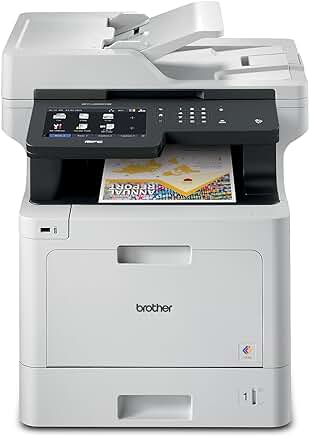
Brother MFC-L8905CDW: The Email Scanning Powerhouse
- Creates up to 64 custom scanning profiles for different departments
- Stores up to 300 email contacts directly on the device
- Offers secure PDF scanning with automatic encryption
- Features 50-sheet ADF with single-pass duplex scanning
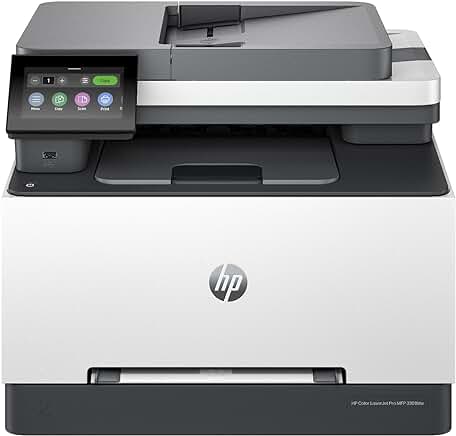
HP Color LaserJet Pro MFP 3301fdw: Email Integration Made Simple
- Simplifies email server configuration through the HP Smart App
- Includes built-in security features to protect scanned data
- Features an intuitive touchscreen interface
- Delivers fast scanning speeds for improved productivity
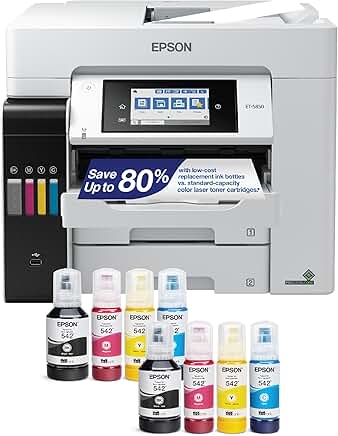
Epson EcoTank Pro ET-5850: The Cost-Effective Email Scanner
- Features a large, easy-to-use touchscreen display
- Includes built-in OCR to create searchable PDFs
- Offers extremely low operating costs through refillable ink tanks
- Provides reliable dual-band WiFi connectivity
Cost-Effectiveness Analysis for Business Printer Investments
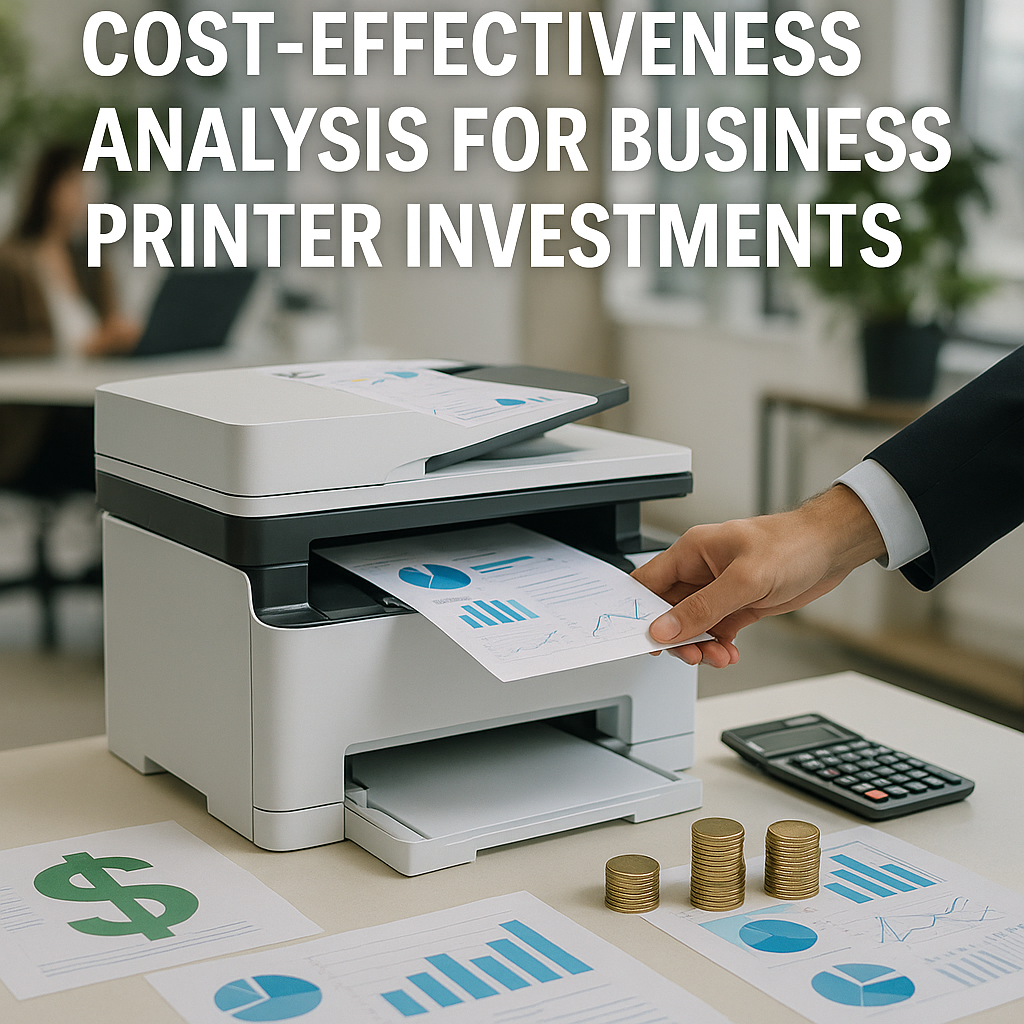
When evaluating printers for business use, it’s essential to look beyond the initial purchase price:
Initial Purchase vs. Total Cost of Ownership
- Purchase price typically ranges from $300-$1,200 for business-grade models
- Consumables costs vary dramatically between models and technologies
- Maintenance requirements and energy consumption significantly impact long-term costs
According to research from Document Management and Workflows, businesses implementing document management systems see a 30-40% reduction in operational costs through workflow automation, making the investment in a quality scan-to-email printer worthwhile for most organizations.
Efficiency Gains from Scan to Email Functionality
- Time savings of 2-5 minutes per scan job
- Reduced error rates by eliminating manual steps
- Faster document delivery to recipients
- Lower administrative burden for document management
These productivity improvements can translate to substantial time savings – as much as 15-20 hours weekly for a medium-sized office, essentially gaining a part-time employee through improved workflow.
Printer Memory and Data Management for Business Environments
Business users should pay particular attention to printer memory and data management:
How Printer Memory Affects Scan to Email Performance
- RAM capacity determines how many pages can be processed simultaneously
- SSD-equipped printers handle large scan jobs faster
- Processing power affects conversion speed for scanned documents
For businesses regularly scanning multi-page documents, a minimum of 1GB of RAM is recommended to ensure smooth performance.
Underpowered printers often freeze or crash when handling large scan jobs.
Security Considerations for Scanned Data
- Many printers retain images of scanned documents on internal storage
- Better models offer configurable automatic deletion policies
- Look for encryption options for stored data
- Consider access controls to restrict who can view stored scans
Implementing automatic deletion of scanned documents after successful email transmission is a simple yet effective security measure that should be configured on any business printer.
Setting Up Multiple Printers in Office Environments
For larger offices with multiple printers:
Centralized Management Solutions
- Print management software allows configuration of scan to email settings across devices
- Directory integration ensures consistent email access
- Standardized templates can be pushed to all devices
- Monitoring tools help optimize printer placement and usage
User Training and Workflow Optimization
- Create simple step-by-step guides for common tasks
- Designate “super-users” in each department
- Schedule regular training refreshers when implementing new features
- Establish feedback mechanisms for identifying issues
Network Considerations
- Assign static IPs to business printers
- Ensure email server allows authenticated connections from printer IPs
- Configure firewalls to permit necessary email traffic
- Consider bandwidth allocation for scan operations
Practical Considerations for All-in-One Printer Selection
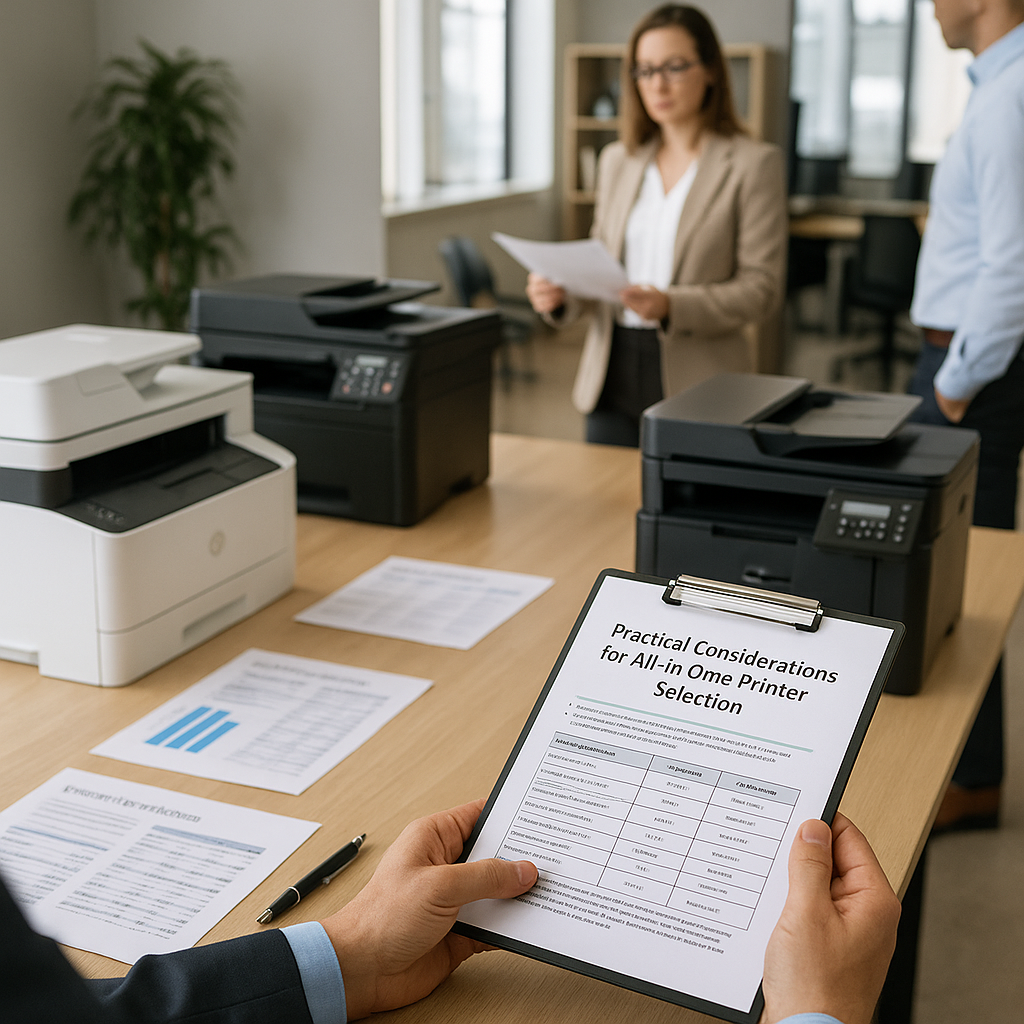
Budget Guidelines: How Much to Spend for Quality Scan to Email Functionality
Different usage scenarios call for different budget ranges:
Entry-Level ($200-$300)
- Basic scan to email functionality, often requiring computer setup
- Suitable for occasional home use with minimal scanning needs
- Example: HP Envy Pro 6420 – budget-friendly option for occasional use
Mid-Range ($300-$500)
- Direct scan to email from the printer’s control panel
- Better scanning quality and faster operation
- Example: Brother MFC-J5330DW – excellent balance of features and affordability
High-End ($500+)
- Advanced workflow options and high-speed scanning
- Email server integration and enhanced security
- Example: Epson EcoTank Pro ET-5850 – premium features with low operating costs
When budgeting, don’t overlook ongoing costs like consumables, power consumption, and maintenance requirements, which often exceed the purchase price over the printer’s lifetime.
Best Options for Infrequent Use Scenarios
For occasional scan to email users:
Best Technologies for Occasional Users
- Inkjet printers with PrecisionCore printheads resist clogging
- Laser printers eliminate dried ink issues
- Newer ink tank systems have improved idle performance
Top Choices for Infrequent Use
- Brother MFC-J1010DW – affordable inkjet with straightforward scan to email setup
- HP Smart Tank 7602 – uses refillable tanks that don’t dry out quickly
- Canon PIXMA TS7720 – powers up reliably even after sitting unused
Maintenance Tips for Infrequently Used Printers
- Print a test page biweekly to prevent nozzle clogs
- Leave the printer powered on in standby mode
- Store paper properly and load only what you’ll use soon
- Run cleaning cycles after periods of non-use
Print Quality vs. Noise Level Considerations
An often-overlooked factor is operational noise:
When Noise Matters Most
- Home offices adjacent to living spaces
- Open-plan office environments
- Client-facing business areas
Noise Level Comparisons
- Inkjet printers: 40-50 dB during scanning (quietest option)
- Business lasers: 50-65 dB (moderate noise)
- High-volume scanners: 60-70+ dB (loudest option)
Quality Considerations for Scanned Documents
- 600 dpi resolution is sufficient for most document scanning
- 24-bit color depth provides standard quality
- Automatic enhancement features improve scan quality
Computer-Free Setup Options for Modern All-in-One Printers
Modern printers offer simpler configuration methods:
Mobile App Setup Methods
- HP Smart App provides guided configuration
- Brother iPrint&Scan offers computer-free setup
- Epson Smart Panel streamlines email configuration
Direct Configuration Options
- Touchscreen interfaces on higher-end models
- Web-based setup via printer IP address
- Voice assistant compatibility on newer models
Connection Requirements
- Wireless networking for mobile app setup
- Sufficient onboard memory for storing settings
- WiFi Direct or Bluetooth for network-independent setup
Longevity and Maintenance of All-in-One Printers
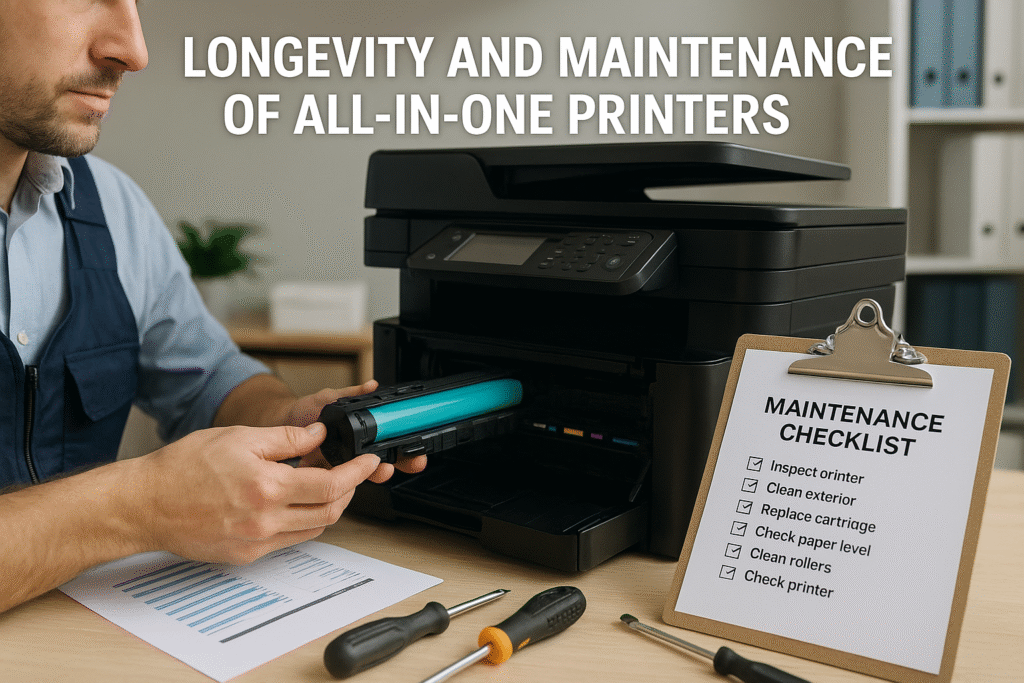
Average Lifespan Expectations for All-in-One Printers
Understanding realistic lifespan expectations helps with purchase planning:
Typical Lifespan By Printer Type
- Inkjet All-in-Ones: 3-5 years average, up to 7 years with proper care
- Laser All-in-Ones: 5-7 years typical, 10+ years possible for high-end models
- Business-Class Multifunction Devices: 5-10 years depending on usage and maintenance
Factors Affecting Printer Longevity
- Print volume relative to rated duty cycle
- Environmental conditions (dust, humidity, temperature)
- Maintenance frequency and quality
- Original vs. third-party supplies
Interestingly, intermittent use can sometimes be more damaging than regular use, as idle printers often develop clogged printheads or dried components.
Signs It’s Time to Replace Your Printer
Watch for these indicators that replacement may be necessary:
Performance Degradation
- Persistent print quality issues despite maintenance
- Increasing frequency of paper jams in different areas
- Unusual noises during operation
- Significantly slower performance
Economic Considerations
- Repair costs exceeding 50% of replacement cost
- Difficulty finding or affording supplies
- Rising cost per page compared to newer models
- Missing features required for current workflow
Technology Obsolescence
- Incompatibility with newer operating systems
- Unaddressable security vulnerabilities
- Significantly lower energy efficiency than newer models
Maintenance Tips for Extending Printer Life
Proper maintenance dramatically extends printer lifespan:
Daily and Weekly Practices
- Keep the printer clean with regular dusting
- Use high-quality paper to reduce internal debris
- Allow complete startup/shutdown cycles
- Check for and remove paper debris
- Keep firmware and software updated
Monthly and Quarterly Maintenance
- Clean paper paths and rollers
- Run built-in diagnostics and cleaning cycles
- Clean scanner glass and automatic document feeder
- Inspect accessible moving parts for wear
- Verify network connectivity functions
Professional Servicing
- Annual professional internal cleaning
- Replacement of wear items like rollers and separation pads
- Calibration of print and scan systems
Cost Analysis: Repair vs. Replacement Considerations
Use these guidelines to make informed repair or replace decisions:
When Repair Makes Financial Sense
- Printer is less than halfway through expected lifespan
- Problem is isolated to a single replaceable component
- Repair costs are under 30% of replacement cost
- Supplies remain readily available at reasonable prices
When Replacement Is The Better Investment
- Printer is approaching or beyond typical lifespan
- Multiple components are failing simultaneously
- Operating costs exceed those of newer models
- Missing features would significantly improve workflow
Calculating True Ownership Costs
- Annual equipment cost = Purchase price ÷ expected years of service
- Annual supplies cost = Consumables cost per page × annual volume
- Annual operational cost = Maintenance + energy expenses
- Total ownership cost = Sum of annual costs × ownership period
This calculation approach helps cut through marketing claims to identify truly economical options.
Finding Your Perfect Scan to Email Solution
The journey to finding the ideal all-in-one printer with scan to email functionality doesn’t have to be overwhelming.
By focusing on your specific needs rather than flashy features, you can select a device that enhances your productivity without unnecessary complexity or expense.
For high-volume business environments with multiple users, Brother’s MFC line offers the best combination of reliability and features.
Security-conscious organizations or those already invested in HP’s ecosystem will find excellent integration with their LaserJet Pro models.
Home offices and small businesses concerned about ongoing costs should strongly consider Epson’s EcoTank line for remarkable value with capable scan to email functionality.
Remember that proper setup and maintenance are just as important as the initial selection.
Take time to configure your email settings correctly, implement appropriate security measures, and establish regular maintenance routines.
These steps will ensure years of trouble-free service from your all-in-one printer.
Have you already implemented scan to email in your workflow?
I’d love to hear about your experiences in the comments below. Which features have you found most valuable?
What challenges have you encountered?
Your insights could help others make better decisions for their own document management needs.

Recent Posts
Monday.com Review 2026: Is It Still the Best Work OS?
I tested Monday.com against ClickUp, Asana, and Wr...
Updated July 27, 2026
AI Writing Software for Blogging in 2026: Best Tools + How to Stay AI-Search Vis...
The best AI writing software for blogging in 2026 ...
Updated July 20, 2026
HubSpot Review 2026: Is It Worth the Cost?
I tested HubSpot’s free CRM, Starter, and Pr...
Updated July 20, 2026
Teamwork.com Review 2026: Is It the Best PM Tool for Client Work?
I tested Teamwork.com for agency and client projec...
Updated May 29, 2026
Wrike Review 2026: Is It Worth the Cost?
I tested Wrike in real enterprise workflows. Here&...
Updated May 29, 2026
Asana Review 2026: Is It Worth It? (Honest, In-Depth Analysis)
I tested Asana across real team workflows. Here...
Updated May 29, 2026
Newsletter
Don't miss a thing!
Sign up to receive daily news